
Most professionals use Microsoft Word every single day — but only a small fraction of its most powerful features. These 10 Microsoft Word productivity tips fix that, cutting the time you lose to manual formatting, messy revisions, and documents that just won’t behave. Learn a handful of them and you’ll genuinely save hours every week.
The reason most people do Word the slow way is simple: they learned it through trial and error and never discovered the faster path existed. This guide is that faster path — practical, beginner-friendly, and focused on the features that actually move the needle.
Why Strong Word Skills Still Matter in 2026
Even with collaborative apps and AI-assisted writing everywhere, Word still dominates professional document creation. Employers consistently rank Microsoft Office proficiency — especially Word — among the top skills they look for. People who use Word efficiently format complex documents in minutes instead of hours, collaborate without version chaos, and produce polished reports that build credibility. Small improvements compound: shave ten minutes off every document and it adds up fast.
10 Microsoft Word Productivity Tips That Save Hours
Here are the features professionals overlook most — ordered roughly from biggest impact to handy extras.
01Use Styles, Not Manual Formatting
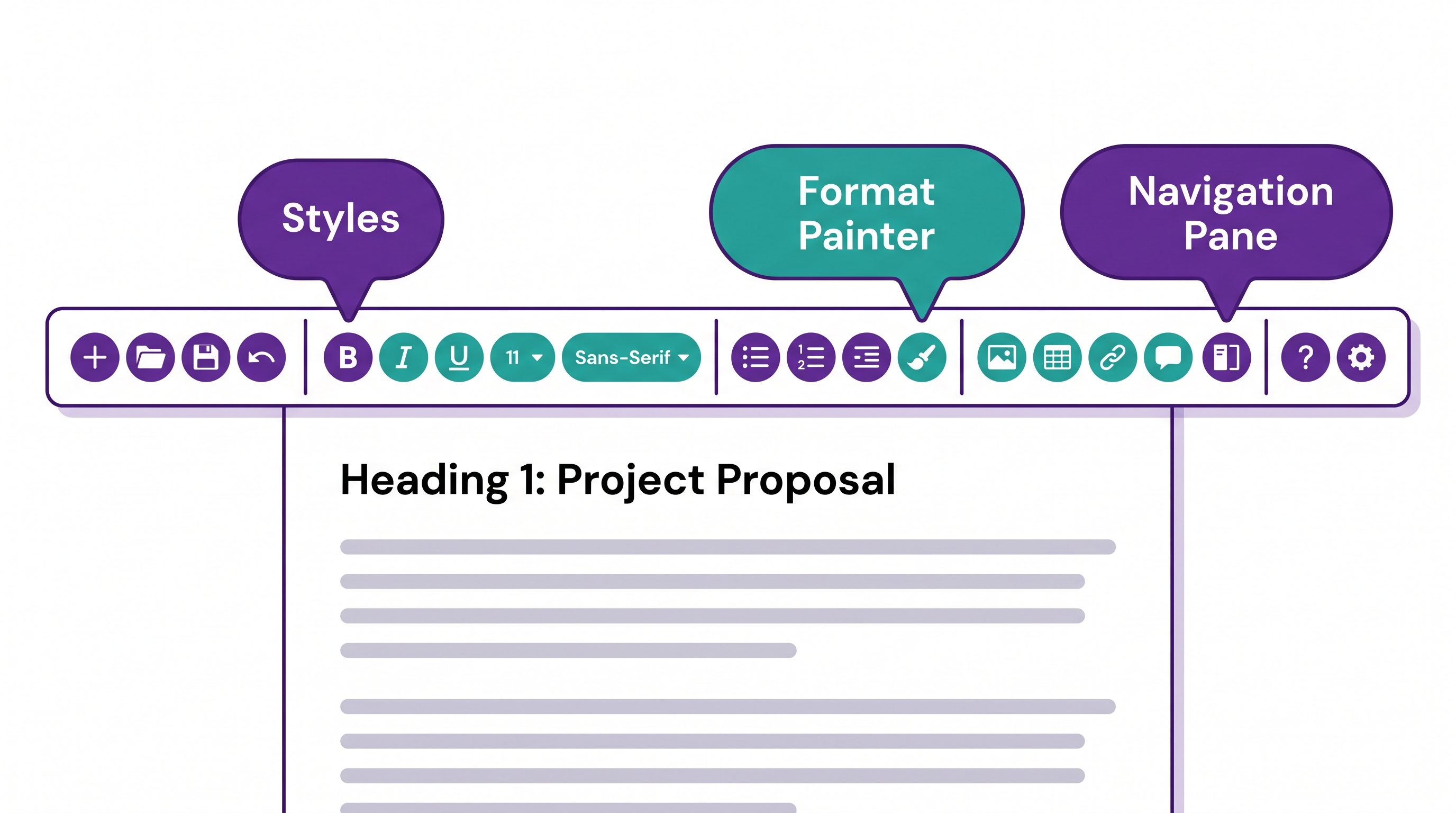
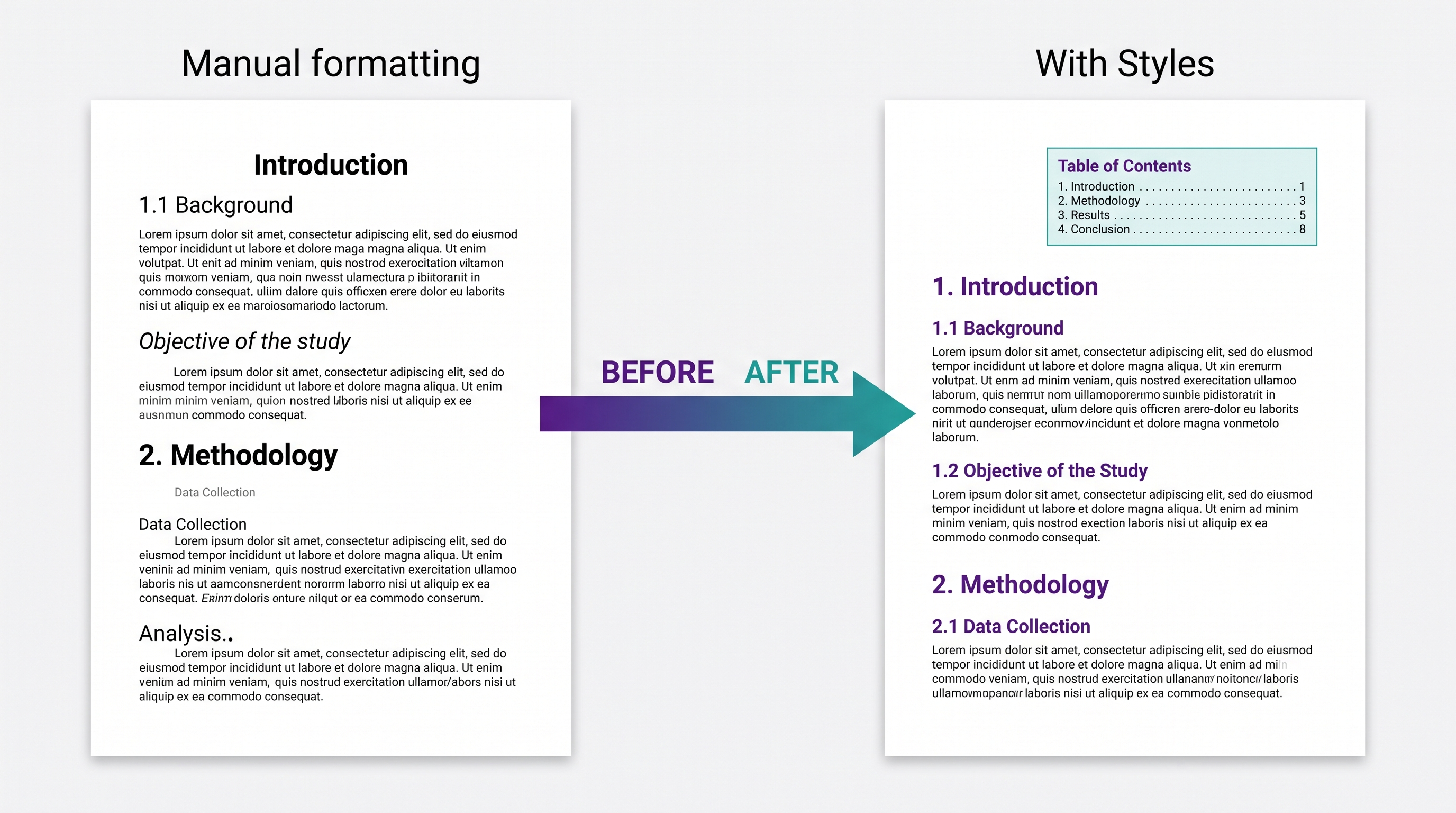
This is the single highest-impact habit in Word. Instead of adjusting font, size, and spacing by hand for every heading, apply Styles (Heading 1, Heading 2, Normal) from the Home tab. Formatting stays consistent across the whole document, you can restyle everything in one click, and — crucially — Styles unlock the automatic table of contents in tip #4.
02Work From Templates
If you recreate the same formatting every time, you’re wasting effort. Build reusable templates for agendas, proposals, reports, and letters, then start new documents from them. Save your own with File → Save As → Word Template, and share them with your team so everything looks consistent.
03Use Track Changes for Collaboration
When more than one person edits a document, Track Changes (Review tab) keeps every edit visible and attributed. You can accept or reject suggestions with full context — no more mystery overwrites or “who changed this?” Pair it with Comments for questions that aren’t direct edits.
04Insert an Automatic Table of Contents
If you used Styles (tip #1), a full table of contents is two clicks away: References → Table of Contents. It builds itself from your headings and updates page numbers automatically when the document changes. For any document longer than a few pages, this is a huge time-saver and looks instantly professional.
05Master Find & Replace
Find & Replace (Ctrl+H) does far more than swap words. Use it to fix a term used throughout a document, clean up double spaces, or — with the More options — replace formatting and use wildcards. It turns tedious manual edits into a single action.
06Learn a Few Keyboard Shortcuts
You don’t need dozens — a handful of shortcuts saves constant trips to the mouse. The highest-value ones are in the table below.
| Shortcut | What it does |
|---|---|
Ctrl + S | Save (do it often) |
Ctrl + Z / Ctrl + Y | Undo / redo |
Ctrl + F / Ctrl + H | Find / Find & Replace |
Ctrl + Shift + C/V | Copy / paste formatting |
Alt + Ctrl + 1/2/3 | Apply Heading 1 / 2 / 3 |
Ctrl + Enter | Insert a page break |
07Use Format Painter
The Format Painter (the paintbrush on the Home tab) copies formatting from one piece of text and applies it to another. Select nicely formatted text, click the brush, then drag over the text you want to match. Double-click the brush to apply the same formatting in multiple places.
08Use the Navigation Pane for Long Documents
Turn on the Navigation Pane (View tab → Navigation Pane) to see a clickable outline of your headings on the left. Jump to any section instantly, and even reorder whole sections by dragging headings. For long reports, it’s the difference between scrolling for a minute and arriving in a second.
09Reuse Content With Quick Parts
If you type the same blocks of text often — a bio, a disclaimer, standard instructions — save them as Quick Parts (Insert tab → Quick Parts) or AutoText. Then insert them in a click instead of retyping or hunting for the last version. Small feature, big cumulative savings.
10Let AI and Copilot Help
Word’s built-in Editor checks spelling, grammar, and clarity, and Microsoft Copilot can draft a first version, rewrite a paragraph, or summarize a long document in plain language. Used well, AI removes the “blank page” problem and speeds up proofreading. For a deeper dive, see our guide to the best ways to use AI inside Microsoft Word.
From Tips to Real Word Confidence
Reading tips is a start; the skill comes from using them. Pick two or three from this list, apply them to your next real document, and let them become habits before adding more. Styles and templates alone will transform how fast you work.
If you’d rather follow a clear, guided path, our Microsoft Word course takes you from the basics to confident, efficient document creation — and strong Word skills are a big part of the Microsoft Office skills employers expect.
Ready to Work Faster in Word?
Go from slow, manual formatting to fast, polished documents — with friendly, plain-English lessons built for professionals who want their time back.
Start the Word Course →Frequently Asked Questions
What are the best Microsoft Word tips and tricks?
The biggest time-savers are Styles, templates, Track Changes, an automatic table of contents, keyboard shortcuts, Format Painter, and the Navigation Pane. Those are the core Microsoft Word tips and tricks in this guide, and mastering even a few makes everyday document work noticeably faster.
What is the most useful Microsoft Word productivity tip?
Using Styles instead of manual formatting. Styles keep formatting consistent, let you restyle a whole document in one click, and unlock the automatic table of contents. It’s the single habit that saves the most time for the least effort.
How can I make Microsoft Word work faster?
Combine Styles and templates so you never rebuild formatting, use keyboard shortcuts to avoid mouse trips, and use the Navigation Pane and Find & Replace to move and edit quickly. A few of these together dramatically cut the time you spend per document.
What are the most important Word keyboard shortcuts?
Start with Ctrl+S (save), Ctrl+Z/Ctrl+Y (undo/redo), Ctrl+F and Ctrl+H (find and replace), Ctrl+Shift+C/V (copy and paste formatting), and Alt+Ctrl+1/2/3 (apply headings). These cover the most common everyday actions.
Do I need a paid plan to use AI features in Word?
Word’s Editor for spelling and grammar is widely available, but the full Microsoft Copilot features generally require a specific paid Microsoft 365 plan, and availability changes over time. The productivity tips in this guide work regardless of whether you have Copilot.
How do I create a table of contents in Word?
First apply heading Styles (Heading 1, Heading 2) to your section titles. Then go to References → Table of Contents and choose a style. Word builds it automatically from your headings and updates page numbers whenever the document changes.
Are these Word tips suitable for beginners?
Yes. Every tip here is beginner-friendly and uses built-in Word features — no add-ins or coding. Start with one or two, practice on a real document, and add more as they become second nature.
Microsoft Word Productivity Tips: Small Changes, Hours Saved
These Microsoft Word productivity tips aren’t about becoming a power user overnight — they’re about swapping a few slow habits for faster ones that compound every week. Start with Styles and templates, add shortcuts and the Navigation Pane, and let AI handle the busywork. When you want a friendly, structured path to real confidence, explore all Wanna Be Tech Savvy courses.

Empowering everyday people with digital skills that open doors to better careers and bigger opportunities. Learning made simple, practical, and affordable.