Are your Windows skills holding you back?
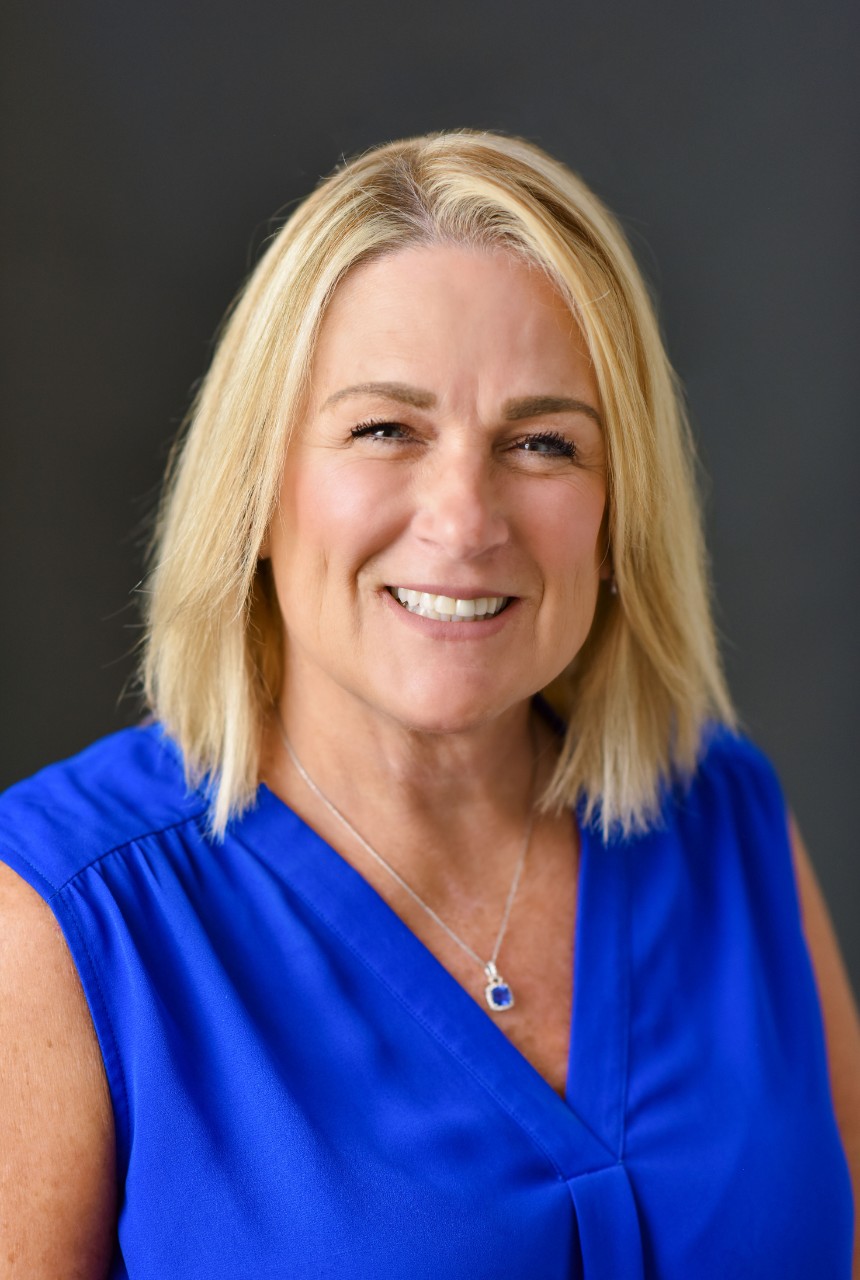
Taught by Kristin Pelletier
Ever feel like your PC has a mind of its own?
If you’re an admin, a virtual assistant, a small business owner or a professional who’s ready to finally make peace with your PC, you’re in the right place.
One monitor to watch on. One monitor to work on.
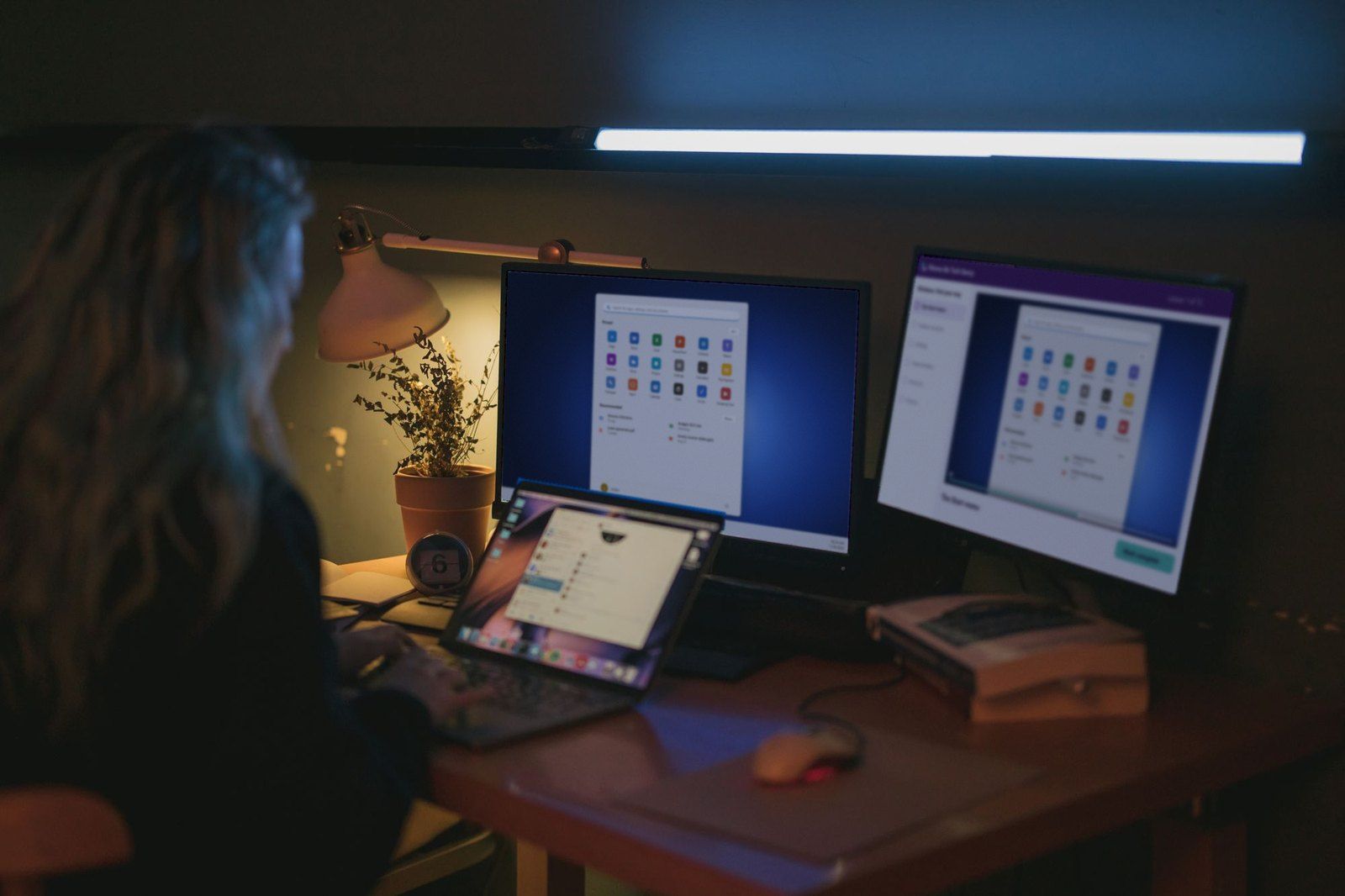
Windows sticks when you practice: pause the video and try each step on your own PC, right alongside us.
What’s in this Windows PC course
Windows 11 and Windows 10
Straight answers.
Which Windows course do I need?
Navigating Your Windows PC teaches you to get around Windows 11 and 10: the Start menu, your settings and the everyday tools. Navigating File Management teaches you to save, find and organize your files in File Explorer. New to Windows? Start with Windows PC. Comfortable getting around, but your files are a mess? Take File Management.
I’m on Windows 10. Is this still for me?
Yes. There’s a full lesson on each version. And when you move to Windows 11 (Microsoft ended support for Windows 10 in October 2025), the Windows 11 lesson is ready for you.
What do I need?
A Windows PC on Windows 11 or 10. Two monitors are recommended, so you can watch on one and work on the other.
Will I get a certificate?
Yes. Pass the 9-question final exam with 80% or better to earn our official Certificate of Completion from Wanna Be Tech Savvy, to showcase on your social media, resume and LinkedIn profile.
What if it’s not for me?
Then ask for your money back. Every course has a 14-day money-back guarantee: ask within 14 days of buying, with less than 30% of the course completed. One email to Support@wannabetechsavvy.com does it. The Refund Policy has the details.
Thinking about more than one course?
A CC2CC path costs less than buying the courses one by one and adds the student community; the Accelerator and the Full Path add monthly live webinars with Kristin too. Compare them on Choose Your Path, or see every course on Explore Courses. Want both Windows courses? They’re part of the Digital Core Skills Launchpad on Explore Courses.
Ready to make Windows work for you?
Employers want more than the basics.
You don’t have to get there alone.
I’ll show you how, one step at a time.
Let’s do this!
Empowering everyday people with digital skills that open doors to better careers and bigger opportunities.