Think about the last document you wrote at work. A report, a proposal, an email that somehow turned into a three-paragraph essay. How long did it take? And how much of that time was spent staring at a blank page, rewriting the same sentence five times, or second-guessing your tone?
If any of that sounds familiar, you're not alone — and the good news is, there's now a smarter way to work. Microsoft Word has built-in AI capabilities that most professionals don't know exist, and they're designed to do exactly what you need: help you write faster, think clearer, and produce polished documents without the painful back-and-forth.
This isn't about replacing your thinking. It's about removing the friction between what you know and what you can express on the page. Here's how to make Word work harder so you don't have to.
Average time professionals spend on document tasks daily
Faster document drafting reported with AI-assisted writing tools
Professionals supported by Kristin Pelletier over the past decade
1. What Microsoft Copilot in Word Actually Does
2. How to Use AI to Draft Documents Faster
3. Rewrite, Tone & Edit — Without Starting Over
4. Summarize Long Documents in Seconds
5. Practical Prompts You Can Use Right Now
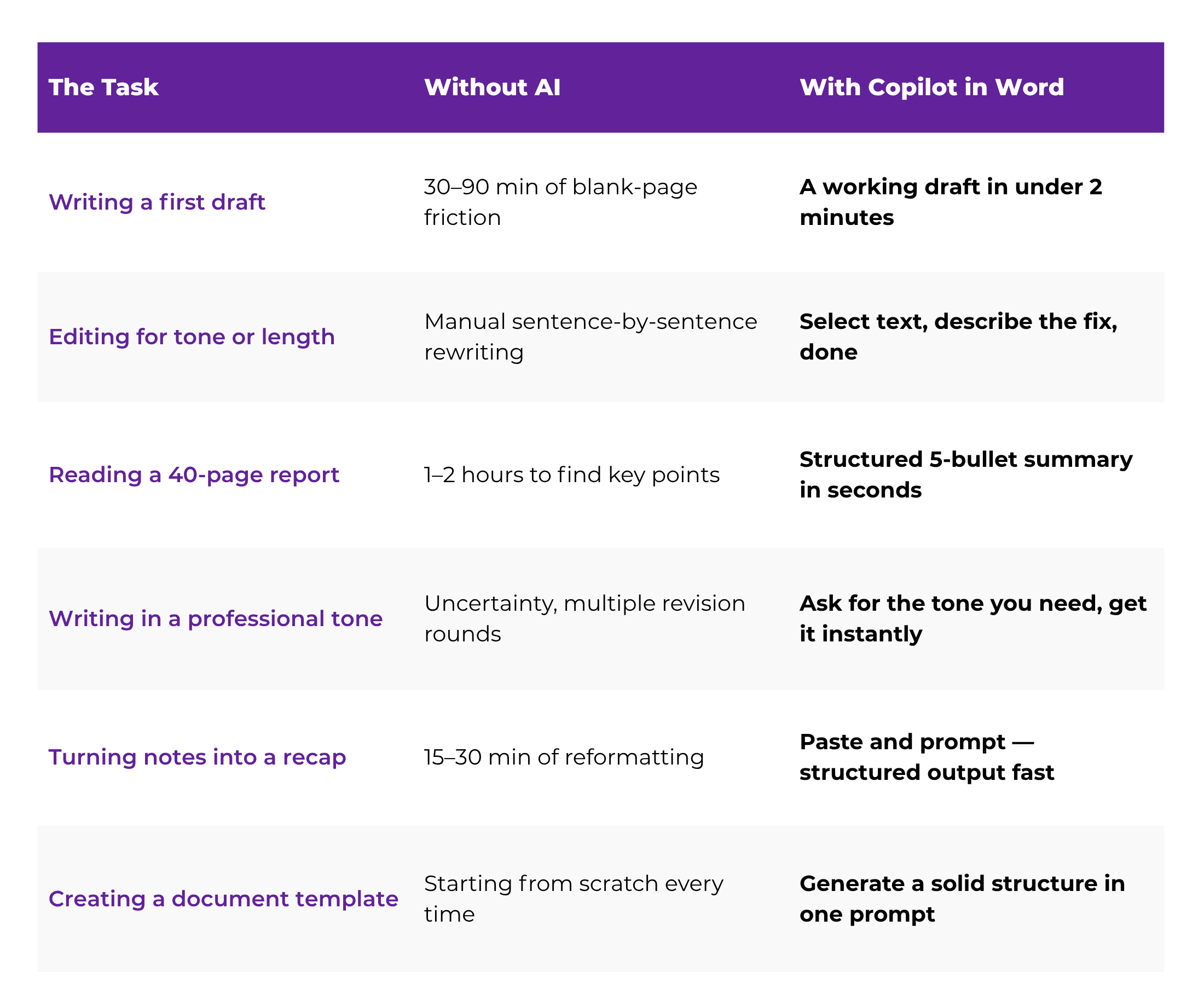
6. What AI Won't Do — And Why That Matters
7. How to Get Started with AI in Word Today
Microsoft rolled out Copilot — its built-in AI assistant — directly inside Microsoft 365 apps, including Word. If you have a Microsoft 365 subscription through your employer or personal account, there's a good chance this tool is already available to you right now.
Copilot isn't a separate app you need to download or configure. It lives right inside the document you're already working in — accessible through a sidebar or a simple command. Think of it as a writing partner who's always on call: one who never gets tired, never judges your first draft, and never reminds you the report was due yesterday.
Draft from a Prompt
Describe what you need in plain language and Copilot generates a first draft — from a full proposal to a single polished paragraph.

Rewrite & Refine
Select any text and ask Copilot to adjust tone, simplify language, or tighten it — no manual sentence-by-sentence rewriting.
Summarize Documents
Drop in a long report or policy document and get a clear, structured summary in seconds — without reading every page.
Ask Questions About Your Doc
Ask "What's the main recommendation here?" and get a direct answer. No rereading. No hunting through pages.
💡 The WBTS Insight
Many professionals over 40 assume AI tools require a tech background to use effectively. Copilot in Word was specifically designed for everyday workplace tasks — no coding, no special skills required. If you can type a sentence, you can use Copilot. That's the whole point.
The blank page is where most professionals lose the most time. Knowing what you want to say and actually getting it onto the page are two very different challenges — and AI closes that gap fast.
With Copilot, you can describe what you need in a sentence or two and get a structured first draft in seconds. That draft won't be perfect — and it's not supposed to be. What it gives you is something to react to instead of something to create from nothing. That single shift can cut your document time in half.
You can use Copilot on a blank document or have it help you continue, restructure, or expand something you've already started. Both work equally well.
Look for the Copilot icon in the top ribbon or sidebar. Click "Draft with Copilot" and describe what you need in plain language — no formatting, no special commands required.
✓ Be specific: more context = a much better first draft
Read through the generated draft. It's your foundation — add your voice, edit for accuracy, and remove anything that doesn't fit your situation. You stay in control; Copilot just eliminates the standing-start problem.
If a paragraph isn't landing right, highlight it and ask Copilot to rewrite it — shorter, stronger, or in a different tone. Iterate quickly rather than rewriting from scratch every time.
✓ This is editing, not starting over — far faster
💬 Try This Prompt
Draft a professional email to my team announcing a change in our meeting schedule. We're moving from Monday mornings to Wednesday afternoons starting next week. Keep the tone clear, friendly, and confident — under 150 words.
One of the most underrated uses of AI in Word isn't drafting from scratch — it's improving what you've already written. You have the ideas. The content is there. But something about the way it reads feels off: too stiff, too wordy, or not confident enough.
This is where Copilot's rewrite and tone tools shine. Highlight the text you want to improve, open the Copilot pane, and tell it what you need — in plain English. No guesswork. No painful line-by-line revision.
-
Make it more concise — cut filler without losing meaning
-
Make it more professional — raise the register without making it stiff or cold
-
Simplify the language — great for documents going to mixed audiences
-
Make it more persuasive — useful for proposals, cover letters, and reports
-
Adjust the tone — from formal to conversational, or vice versa
-
Expand a bullet point into a paragraph — when you need more depth
-
Condense a long paragraph into one sentence — for executive summaries or headers
"AI in Word doesn't replace your voice — it amplifies it. Your ideas stay yours. The friction just disappears."
💬 Try This Prompt
Rewrite the following paragraph to sound more confident and direct. Remove any hedging language and tighten it to three sentences maximum:
[paste your paragraph here]
This might be the single most time-saving feature in Microsoft Word's AI toolkit — and the one most professionals overlook entirely.
How much time do you spend reading through long reports, policy documents, contracts, or meeting notes just to find the two or three things that actually matter to your role? With Copilot, you can get a structured summary of an entire document in seconds — highlighting key points, decisions, and action items — without reading every word.
This works whether the document is something you received from a colleague, something you're editing, or something you inherited from a previous project. Open it in Word, click the Copilot pane, and ask.
💬 Prompts That Work Well for Summarization
Summarize this document in 5 bullet points, focusing on key decisions and next steps.
What are the main recommendations in this report?
List all deadlines or dates mentioned in this document.
What does this policy require employees to do differently from what we do now?
Imagine receiving a 40-page vendor proposal before a Monday morning meeting. Instead of spending your Sunday reading every page, you open it in Word and ask Copilot to summarize the key terms, pricing, and risks — in minutes. You walk into that meeting prepared, informed, and confident. That's not a shortcut. That's working smarter.
The quality of what AI produces depends almost entirely on how clearly you ask. Here are ready-to-use prompts organized by common workplace document types. Copy them, adapt them, and make them yours.
💬 Prompts to Try
Write an executive summary for the following report. Keep it under 200 words and highlight the three most important findings: [paste content]
Draft a project proposal for [project name]. Include sections for overview, goals, timeline, and expected outcomes. Keep the tone professional but accessible.
Rewrite this recommendations section to be more action-oriented. Start each recommendation with a strong verb.
💬 Prompts to Try
Write a professional follow-up email after a client meeting. We discussed [topic]. The next step is [action]. Keep it under 100 words and end with a clear call to action.
Rewrite this email to sound less passive. Make it confident and direct without being rude.
Shorten this message to 3 sentences while keeping the key information intact: [paste email]
💬 Prompts to Try
Turn these rough bullet points into a professional meeting recap with clear sections for decisions made, action items, and next steps: [paste notes]
Write a brief summary of the following meeting notes for someone who wasn't able to attend. Keep it to one paragraph: [paste notes]
This section matters — not to scare you off these tools, but to make sure you get real, sustainable results from them.
AI in Word is a powerful assistant, not a substitute for professional judgment. It doesn't know your specific company context, your relationship with the person you're writing to, or the history behind a particular decision. It will sometimes produce content that's grammatically polished but subtly off — too generic, slightly inaccurate, or tonally wrong for your audience.
What this means in practice: always review AI-generated content before you send or publish it. Use Copilot as your first-draft generator and editing partner — not the final authority. Bring your knowledge, your professional instincts, and your understanding of the reader to everything it gives you.
AI generates. You review, refine, and sign off. The document with your name on it represents your professional judgment — not the machine's. The better you get at guiding AI with clear, specific prompts, the better the output becomes. That's a skill worth intentionally building.
You don't need to overhaul your workflow overnight. The most effective way to build this habit is to start small — with something real, something low-stakes, something you're already doing. Here's a practical on-ramp:
Open Microsoft Word and look for the Copilot icon in the top ribbon. If it's there, you're ready. If not, check with your IT department or your Microsoft 365 subscription settings — many plans include it and it may just need to be enabled.
Choose something low-stakes: a team update, a meeting recap, or an internal email. Use Copilot to generate a first draft, then edit it to make it yours. The goal is to get comfortable with the tool — perfect output on the first try is a bonus, not the target.
✓ Low stakes = faster learning. Start there.
Find a paragraph in a document you've already written that feels clunky or too long. Highlight it and ask Copilot to simplify or sharpen it. Seeing what it produces — and how fast — is one of the quickest ways to understand what this tool can do specifically for you.
AI tools are more powerful when you understand the software around them. Knowing Word's formatting, styles, and structure means you can apply AI output more efficiently — and spot issues faster. Structure and AI together is where your real advantage lives.
✓ The WBTS Microsoft Word course is built for exactly this
"The professionals who thrive in the next decade won't be the ones who resist AI — they'll be the ones who learn to direct it with clarity and confidence."
Yes, AI in Word saves time. But the deeper benefit — the one that tends to surprise professionals most — is the confidence it builds. When you're no longer dreading the blank page, when you know you can turn rough notes into a polished document in minutes, your relationship with written communication at work changes entirely.
You stop avoiding the report that's been sitting in your to-do list for a week. You raise your hand for the proposal assignment. You send the follow-up email the same day instead of three days later — because you know you can pull it together fast and well.
That's not a productivity hack — that's a career advantage. And it's available to you right now, inside a tool you probably already have on your computer.
The question isn't whether AI will reshape how professionals work in Word. It already is. The question is whether you'll be the one leading that shift — or the one catching up to it later.
TAKE THE NEXT STEP
Master Microsoft Word — The Smart Way
The WBTS Microsoft Word course is built for professionals who want to use Word with real confidence — from formatting and structure to integrating the AI tools that save you genuine time. Pair it with our AI & ChatGPT Masterclass and you'll have a complete modern productivity toolkit.

 Open a new or existing Word document
 Click the Copilot icon and describe what you need
 Review and revise what Copilot produces
 Ask Copilot to refine sections that need work