
What Is OneDrive and How Do I Use It? A Plain-English Guide
Maybe you’ve seen a little cloud icon in the corner of your screen. Maybe a coworker said, “Just put it in OneDrive,” and you nodded along. Or maybe your computer keeps asking you to “back up your files,” and you’re not sure what happens if you click yes.
If any of that sounds familiar, you’re not behind — nobody ever sat you down and explained it. This plain-English guide answers the question “What is OneDrive?” and walks you through how to use OneDrive to save, find, back up, and share your files, one simple step at a time.
THE SHORT VERSION
OneDrive is Microsoft’s free cloud storage service. It saves your files on secure Microsoft servers (“the cloud”) so you can open them from any computer, phone, or tablet, and so they’re safe if your computer breaks or gets lost. OneDrive comes built into Windows and Microsoft 365. To use it, sign in with your Microsoft account, save files into your OneDrive folder, and they sync automatically everywhere you’re signed in. You can also share a file with a link instead of emailing attachments.
-
1. What is OneDrive?
-
7. Back up your Desktop and Documents
-
2. What “the cloud” really means
-
8. How to share a file
-
3. Why use OneDrive?
-
9. Open files on any device
-
4. How to set up OneDrive
-
10. Recover deleted or older files
-
5. How to save files to OneDrive
-
11. How much storage you get
-
6. What the OneDrive icons mean
-
12. FAQs

What is OneDrive, in plain English?
OneDrive is an online storage space from Microsoft where you can keep your documents, photos, and other files. Instead of living only on one computer, your files are stored safely online and can be opened from any device where you sign in.
Think of it like a personal filing cabinet that follows you everywhere. Your laptop at home, your work computer, and your phone can all open the same drawer. Put a file in on one device, and it’s waiting for you on the others.
OneDrive comes with Windows 10 and Windows 11, and it’s included with Microsoft 365. That’s why it pops up so often — Word, Excel, and PowerPoint are designed to save straight to it.
What does “the cloud” actually mean?
“The cloud” simply means storage on someone else’s secure computers, reached over the internet. When you save a file to OneDrive, it’s stored in Microsoft’s data centers instead of only on your own hard drive.
Nothing is floating in the sky, and you don’t need to understand how the servers work. All you need to know is this: a file in the cloud is a file you can still get to, even if your computer isn’t with you — or isn’t working.
Why should I use OneDrive?
-
Protects your files — if your laptop crashes, is stolen, or spills coffee, your files are still safe online.
-
Lets you work from anywhere — start a document at the office and finish it at home or on your phone.
-
Makes sharing easy — send a link instead of a giant email attachment.
-
Keeps one up-to-date copy — no more “Budget_FINAL_v4” files scattered everywhere.
-
Saves your work as you go — with AutoSave in Word, Excel, and PowerPoint, changes save automatically.
-
Lets you go back in time — restore an earlier version of a file or bring back something you deleted by mistake.
For job seekers and career changers, OneDrive also shows up constantly at work. Many employers use it alongside Microsoft Teams and SharePoint, so being comfortable with it helps you look capable from day one.
How do I set up OneDrive on my computer
To set up OneDrive on a Windows PC, open the OneDrive app, sign in with your Microsoft account, and follow the short setup screens. On most Windows 10 and 11 computers, OneDrive is already installed — you just need to sign in.Large text.
- Click the Start button and type OneDrive, then open the app.
- Sign in with your Microsoft account (the same email you use for Outlook.com, Microsoft 365, or your work or school account).
- Confirm where your OneDrive folder will live on your computer. The default location is fine.
- Choose whether to back up your Desktop, Documents, and Pictures folders (more on that below).
- Click through the welcome screens. A cloud icon will appear in the bottom-right corner of your screen, near the clock.
On a Mac, download OneDrive from the Mac App Store. On your phone, download the free OneDrive app from the App Store or Google Play and sign in with the same account.
How do I save files to OneDrive?
- Click File → Save As.
- Choose OneDrive from the list of locations.
- Pick a folder, type a clear file name, and click Save.
Once it’s saved to OneDrive, the AutoSave switch in the top-left corner turns on, and your changes save automatically while you work.
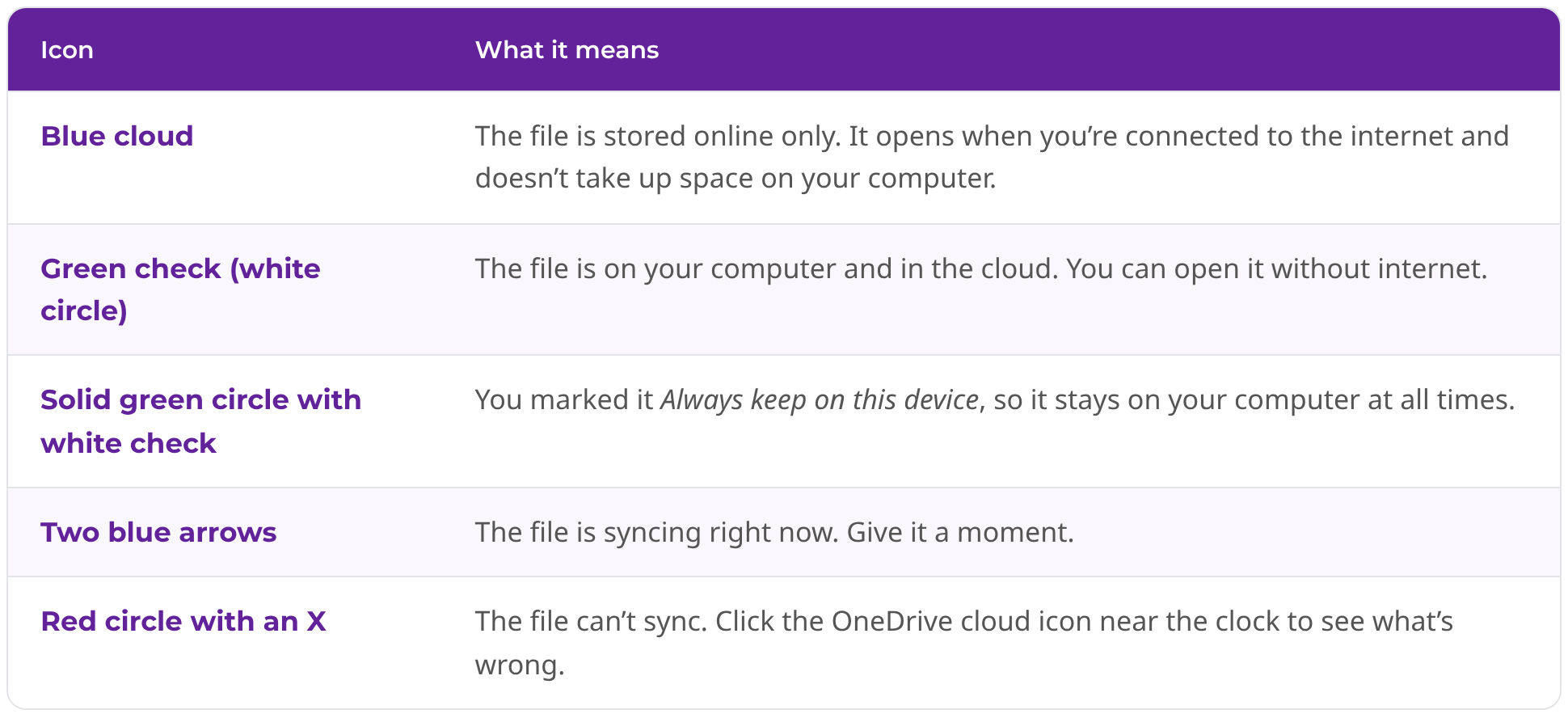
What do the OneDrive cloud and checkmark icons mean?
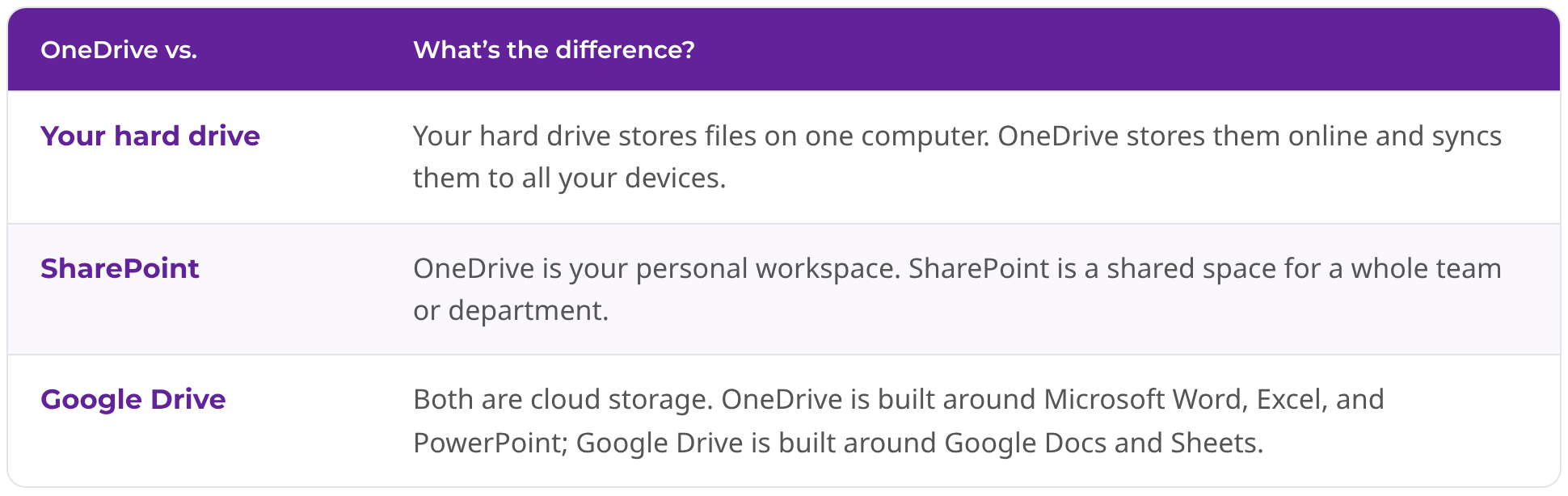
How do I back up my Desktop, Documents, and Pictures with OneDrive?
OneDrive can automatically back up your Desktop, Documents, and Pictures folders so everything you save there is protected without you doing anything extra. Microsoft calls this folder backup.
- Click the OneDrive cloud icon near the clock.
- Select the Settings gear → Settings.
- Go to Sync and back up and choose Manage back up.
- Turn on the folders you want to protect, then click Start backup.
After that, your files stay right where you’re used to finding them — they’re just backed up quietly in the background.
GOOD TO KNOW
How do I share a file from OneDrive?
To share a file from OneDrive, right-click it, choose Share, decide whether people can view or edit, and send the link. The other person opens the same file — no attachment needed.
- Right-click the file in File Explorer or on onedrive.com and select Share.
- Click the settings option to choose who can open it (for example, only people you name) and whether they can edit or can view only.
- Type the person’s email address and click Send, or choose Copy link to paste it into an email or chat.
Want to stop sharing later? Open Manage access on the file and remove the person or the link. You’re always in control.
When you share a Word, Excel, or PowerPoint file with edit access, several people can work on it at the same time. Everyone sees one up-to-date version, which makes teamwork much calmer.
How do I open my OneDrive files on another device?
-
On a phone or tablet: open the OneDrive app to view, share, or upload files. You can even scan paper documents with your camera.
-
On a borrowed or public computer: use onedrive.com in a web browser, and remember to sign out when you’re done.
-
On your second computer: sign in to the OneDrive app once, and your files sync automatically.
Can I get back a file I deleted or changed by mistake?
01 Restore a deleted file
Go to onedrive.com, select Recycle bin on the left, check the file you want, and click Restore. For personal Microsoft accounts, deleted items are generally kept for 30 days; work and school accounts often keep them longer, depending on your organization’s settings.
02 Go back to an earlier version
Right-click the file and choose Version history. You’ll see a list of earlier saves with dates and times. Open or restore the one you need. It’s a lifesaver when a document gets accidentally overwritten.
How much storage do I get with OneDrive, and is it free?
OneDrive is free to use with any Microsoft account and includes 5 GB of free storage. Microsoft 365 Personal and Family subscriptions include 1 TB of storage per person, and work or school accounts typically include storage set by your organization.
For most documents, 5 GB goes a long way. Photos and videos fill it faster. To check your space, click the OneDrive cloud icon, then Settings → Account, or look at the bottom-left corner of onedrive.com.
What are the best OneDrive habits for beginners?
-
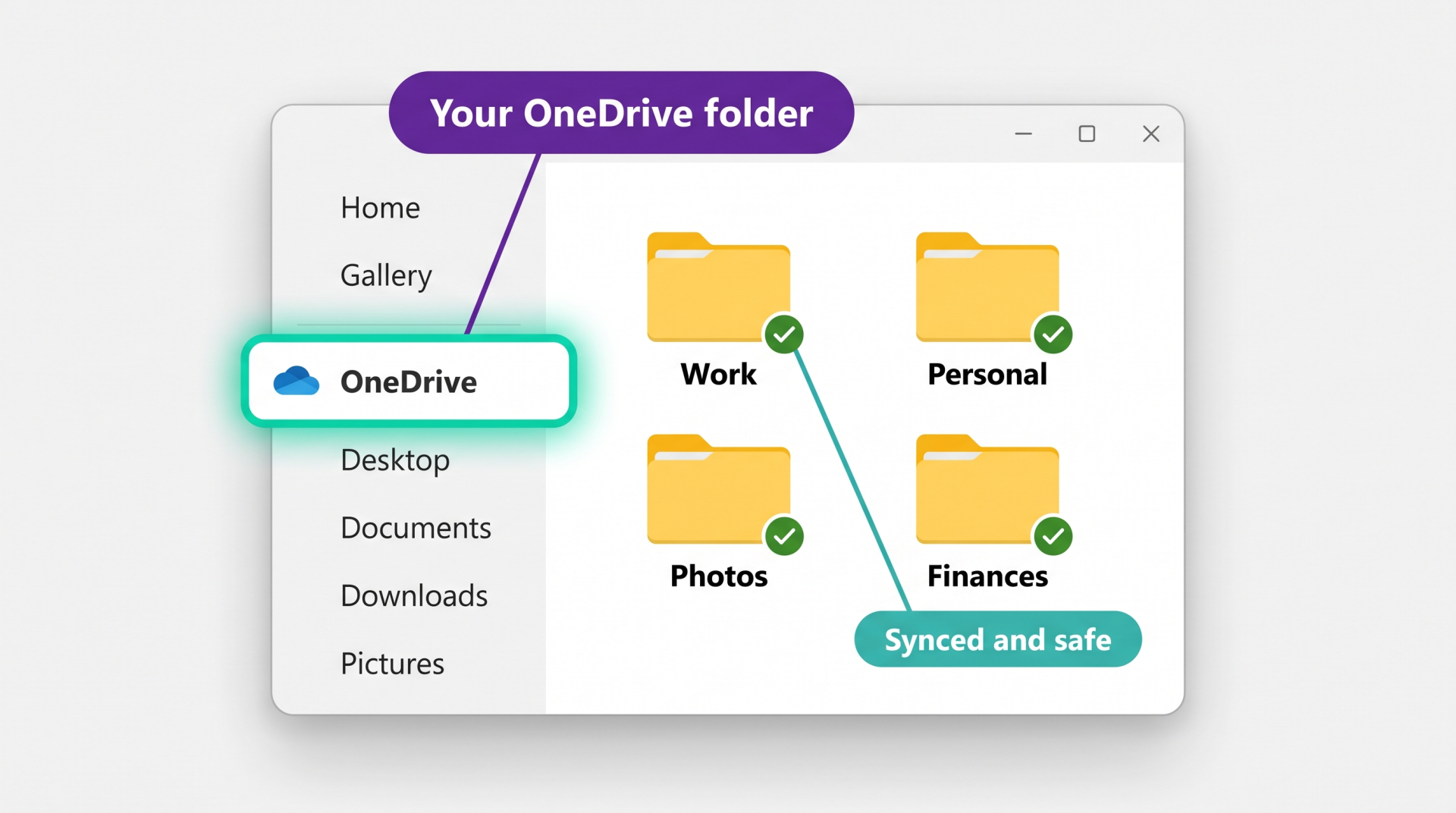
Create a few clear folders — for example, Work, Personal, Finances, and Photos.
-
Use names you’ll recognize later, like “2026-Resume-Kristin” instead of “Document1.”
-
Glance at the cloud icon now and then to make sure it isn’t showing an error.
-
Share with “Can view” unless someone truly needs to edit.
-
Turn on two-step verification for your Microsoft account for extra security.
-
Keep personal and work files separate — use your work OneDrive only for work.
Frequently Asked Questions
What is OneDrive used for?
Is OneDrive free?
Do I need OneDrive on my computer?
If I delete a file from my computer, is it deleted from OneDrive too?
Yes. OneDrive syncs your files, so deleting a file on your computer also removes it from OneDrive. The file goes to the OneDrive recycle bin, where you can usually restore it for a limited time.
Is OneDrive safe and secure?
What’s the difference between OneDrive and SharePoint?
Can I use OneDrive without internet?
OneDrive Made Simple: You’ve Got This

Empowering everyday people with digital skills that open doors to better careers and bigger opportunities.