
Microsoft Teams for Beginners: How to Join Meetings, Chat, and Collaborate Without Panic
That moment when a meeting invite says “Join on Microsoft Teams” and your stomach drops a little? You’re in good company. Plenty of capable, experienced professionals feel a flash of panic about clicking the wrong button, being stuck on mute, or accidentally showing their whole screen.
Here’s the truth: Microsoft Teams is much simpler than it looks once someone walks you through it. This beginner’s guide covers exactly how to join a Teams meeting, use the meeting controls, chat with coworkers, and share files — in plain English, one step at a time.
The Short Version
Microsoft Teams is Microsoft’s app for video meetings, chat, and teamwork.
To join a Teams meeting, click the Join link in your email or calendar invite, check your camera and microphone on the preview screen, and select Join now. During the meeting, use the toolbar to mute, turn your camera on or off, raise your hand, chat, and share your screen. Outside meetings, use Chat for quick messages and Teams channels for group projects and shared files.-
1. What is Microsoft Teams?
-
7. Teams and channels explained
-
2. A quick tour of the screen
-
8. Sharing and editing files
-
3. How to join a Teams meeting
-
9. Your status and notifications
-
4. Meeting controls made simple
-
10. Helpful keyboard shortcuts
-
5. How to share your screen
-
11. How to stay calm in meetings
-
6. How to chat in Teams
-
12. FAQs

What is Microsoft Teams, and why does everyone use it?
Microsoft Teams is a workplace app that brings video meetings, instant messaging, and file sharing into one place. It’s part of Microsoft 365, which is why so many employers, schools, and organizations use it every day.
Think of it as three tools in one: a meeting room for video calls, a message board for quick conversations, and a shared filing cabinet where your team keeps documents. You can use it in the desktop app, in a web browser, or on your phone.
For job seekers and career changers, knowing your way around Teams is no longer a “nice to have.” Interviews, onboarding, and day-to-day teamwork often happen there — so feeling comfortable with it helps you show up as capable from day one.
What’s on the Microsoft Teams screen?
The Teams screen has a menu bar down the left side and a search bar across the top. Everything you need starts from that left-hand menu. Here are the main buttons you’ll see:
-
Activity — your notifications, like when someone mentions you or replies to you.
-
Chat — your one-on-one and group conversations.
-
Teams — the groups you belong to and their channels (in some versions, these appear together with your chats).
-
Calendar your upcoming meetings, synced with Outlook.
-
Calls — phone-style audio or video calls (if your organization uses them).
Your picture or initials sit in the top-right corner. Click there to change your status or open
Settings. That’s really all the “map” you need to get started.How do I join a Microsoft Teams meeting?
To join a Teams meeting, open the meeting invite and click the join link, then select Join now on the preview screen. It takes about 30 seconds, and you can check your camera and microphone before anyone sees or hears you.
01 Join from your email or calendar invite
- Open the meeting invite in your email or Outlook calendar.
- Click Join the meeting now (or the Join button in Outlook or the Teams Calendar).
- If asked, choose to open the Teams app or Continue on this browser. Both work fine.
- On the preview screen, choose whether your camera and microphone are on or off.
- Click Join now. If the organizer uses a lobby, you’ll wait a moment until they let you in.
02 Join with a meeting ID and passcode
03 Join without the Teams app
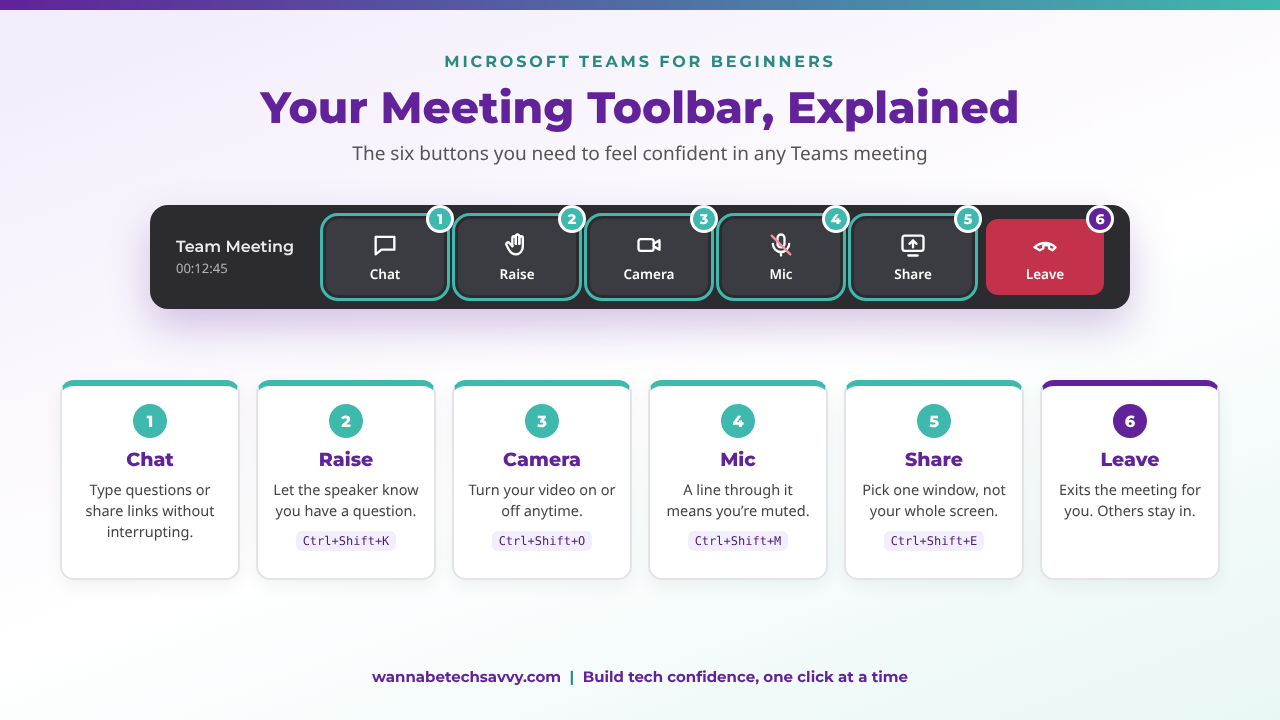
What do the Teams meeting buttons do?
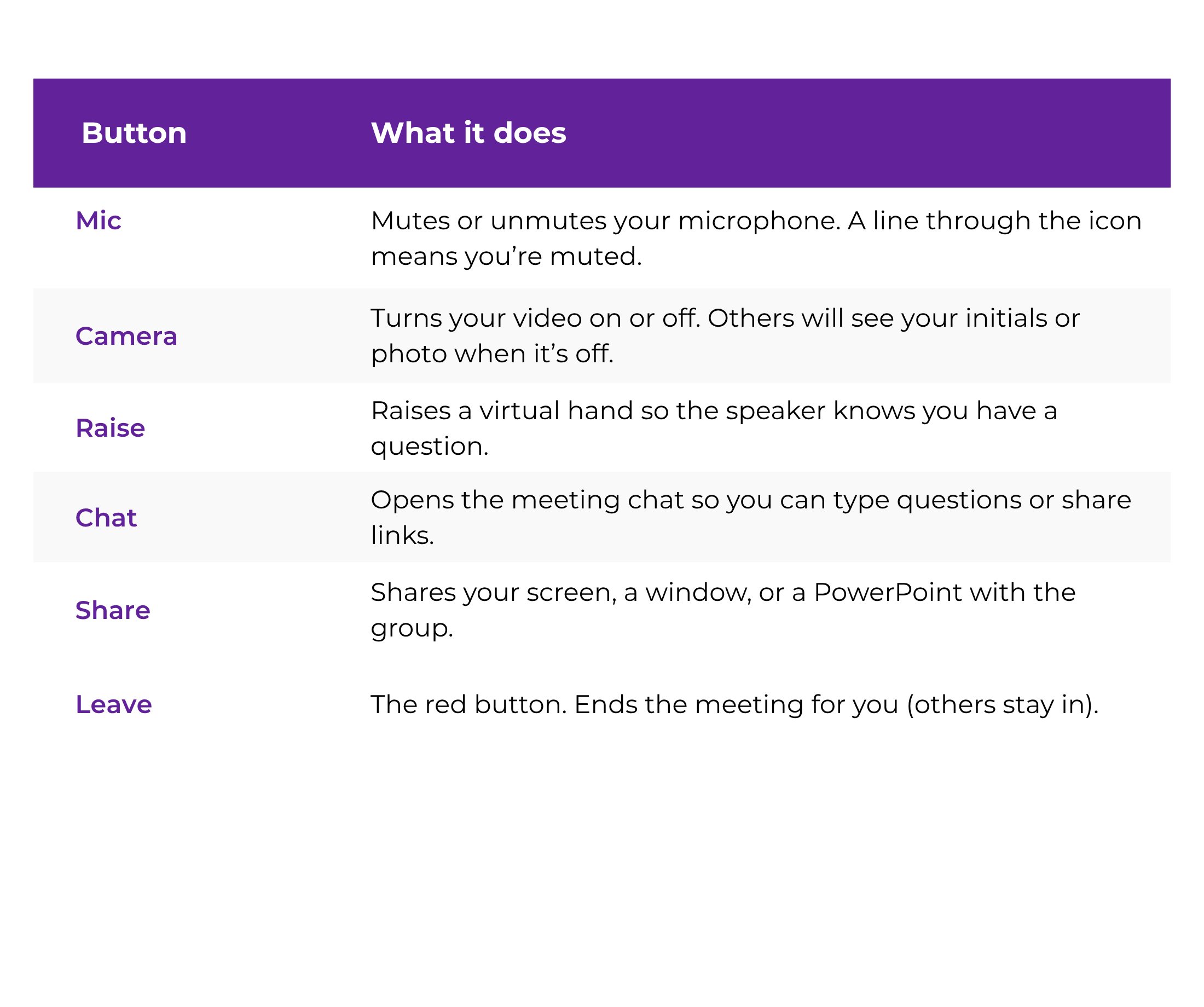
How do I share my screen in Teams without showing everything?
To share your screen safely, click Share in the meeting toolbar and choose a single window instead of your whole screen. That way, people see only the file or app you picked — not your inbox, desktop, or open tabs.
- Open the file or app you want to show before you click Share.
- Click Share in the meeting toolbar.
- Pick the specific Window (or your PowerPoint file) from the list.
- If you’re showing a video, turn on Include sound.
- When you’re done, click Stop sharing at the top of the screen.
A colored border around a window tells you it’s the one being shared, so you can always double-check.
How do I chat in Microsoft Teams?
A few chat features make conversations easier to follow:
-
@mentions — type @ and a person’s name to make sure they get notified.
-
Reactions — hover over a message and choose a thumbs-up or heart to say “got it” without adding another message.
-
Reply to a specific message — hover over it, select More options (…), and choose Reply so your answer stays connected.
-
Formatting — click the Format icon (an “A” with a pen) to add bullet points or bold text to longer messages.
-
Edit or delete — made a typo? Hover over your own message and select Edit. No panic needed.
What’s the difference between Teams, channels, and chats?
A chat is a private conversation with one or more people. A team is a larger group, like a department or project, and channels are topic-based spaces inside that team where everyone can see the conversation and shared files.
A simple way to remember it: use chat for quick, personal questions, and use a channel when the whole group needs to see the update. For example, a “Marketing” team might have channels called General, Social Media, and Budget.
How do I share and work on files together in Teams?
To share a file in Teams, click the paperclip (Attach) icon in a chat or channel and choose a file from your computer or OneDrive. Everyone in that conversation can then open it — and with Word, Excel, and PowerPoint files, edit it at the same time.
This is called co-authoring, and it means no more emailing “Final_v3_REALLY_final.docx” back and forth. Everyone works on one copy, and changes save automatically. Files shared in chats are stored in your OneDrive, while files shared in channels live in your team’s SharePoint site — Teams handles that for you behind the scenes.
Look for the Files or Shared tab at the top of any chat or channel to find everything that’s been shared there.
How do I set my status and control notifications?
Your status tells coworkers whether you’re free to talk. Click your picture in the top-right corner to change it to Available, Busy, Do not disturb, Be right back, or Appear away. You can also add a short status message, like “Focusing on reports until 2 p.m.”
If constant pop-ups feel overwhelming, go to Settings → Notifications and activity and turn off the alerts you don’t need. Setting Do not disturb during focus time is a simple, professional way to protect your attention.
Which Microsoft Teams keyboard shortcuts are most useful?
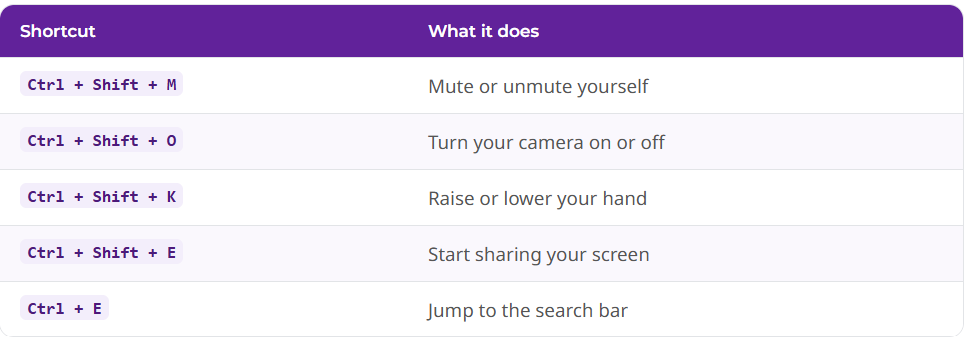
Cmd instead of Ctrl.How can I feel less nervous in Teams meetings?
-
Join two to three minutes early so you can sort out sound or camera issues without pressure.
-
Stay muted when you’re not speaking, especially in larger meetings.
-
Use background blur if you’re worried about what’s behind you.
-
Raise your hand or use the chat to ask a question instead of jumping in.
-
Turn on live captions if audio is hard to follow.
-
Laugh it off if you talk while muted. It happens to everyone — really.
A note on Copilot in Teams
Some workplaces have Microsoft Copilot in Teams, which can recap meetings and summarize long chats. It depends on your Microsoft 365 plan and your employer’s settings. Everything in this guide works without it, so focus on the basics first.
Frequently Asked Questions
How do I join a Microsoft Teams meeting for the first time?
Can I join a Teams meeting without downloading the app?
How do I know if I’m muted in Teams?
What is the difference between a chat and a channel in Teams?
A chat is a private conversation with one or more people. A channel is a shared space inside a team where every team member can see the messages and files. Use chat for quick questions and channels for group updates.
How do I share only one window instead of my whole screen?
Is Microsoft Teams hard to learn for beginners?
Microsoft Teams for Beginners: You’ve Got This

Empowering everyday people with digital skills that open doors to better careers and bigger opportunities.