
Microsoft PowerPoint for Beginners: How to Build Confident, Professional Slides
Sep 25
/
Wanna Be Tech Savvy
If the words “Can you put together a few slides?” make your stomach drop, you’re in good company. Many professionals learned their jobs long before Microsoft PowerPoint became part of every meeting, and nobody ever sat them down to show them how it works.
This beginner’s guide fixes that. You’ll learn how PowerPoint is laid out, how to build a clean presentation from scratch, and the simple design rules that make your slides look professional, even if you don’t think of yourself as “creative” or “a tech person.”

The Short Version
To build professional slides in PowerPoint as a beginner: pick a simple theme, use the built-in slide layouts, keep one idea per slide, use large readable text, and practice with Presenter View. You don’t need design skills. PowerPoint’s layouts and Designer tool do most of the visual work for you.
IN THIS GUIDE
-
1. What PowerPoint is used for
-
6. Common beginner mistakes
-
2. Is PowerPoint hard to learn?
-
7. Presenting with confidence
-
3. The PowerPoint screen, explained
-
8. Designer and Copilot
-
4. Your first presentation, step by step
-
9. Why it matters for your career
-
5. What makes slides look professional
-
10. FAQs
What Is Microsoft PowerPoint Used For?
Microsoft PowerPoint is a program for creating slide presentations: a series of pages (slides) that combine short text, images, and charts to support what you’re saying out loud. It’s part of Microsoft 365, alongside Word, Excel, and Outlook.
At work, you’ll see PowerPoint used for:
-
Team and project updates in weekly or monthly meetings
-
Client proposals and pitches
-
Training and onboarding for new staff
-
Reports to leadership that turn numbers into a clear story
-
Job interviews, where some roles ask you to present a short plan
Is PowerPoint Hard to Learn for Beginners?
No. PowerPoint is one of the most beginner-friendly Microsoft 365 apps, and most people can build a simple, professional presentation after a few hours of guided practice. The basics are clicking, typing, and choosing from ready-made layouts.
What trips people up usually isn’t the software. It’s not knowing where things are, or trying to do too much on one slide. Once you understand the layout of the screen and a few simple design rules, everything gets calmer.
What Are the Main Parts of the PowerPoint Screen?
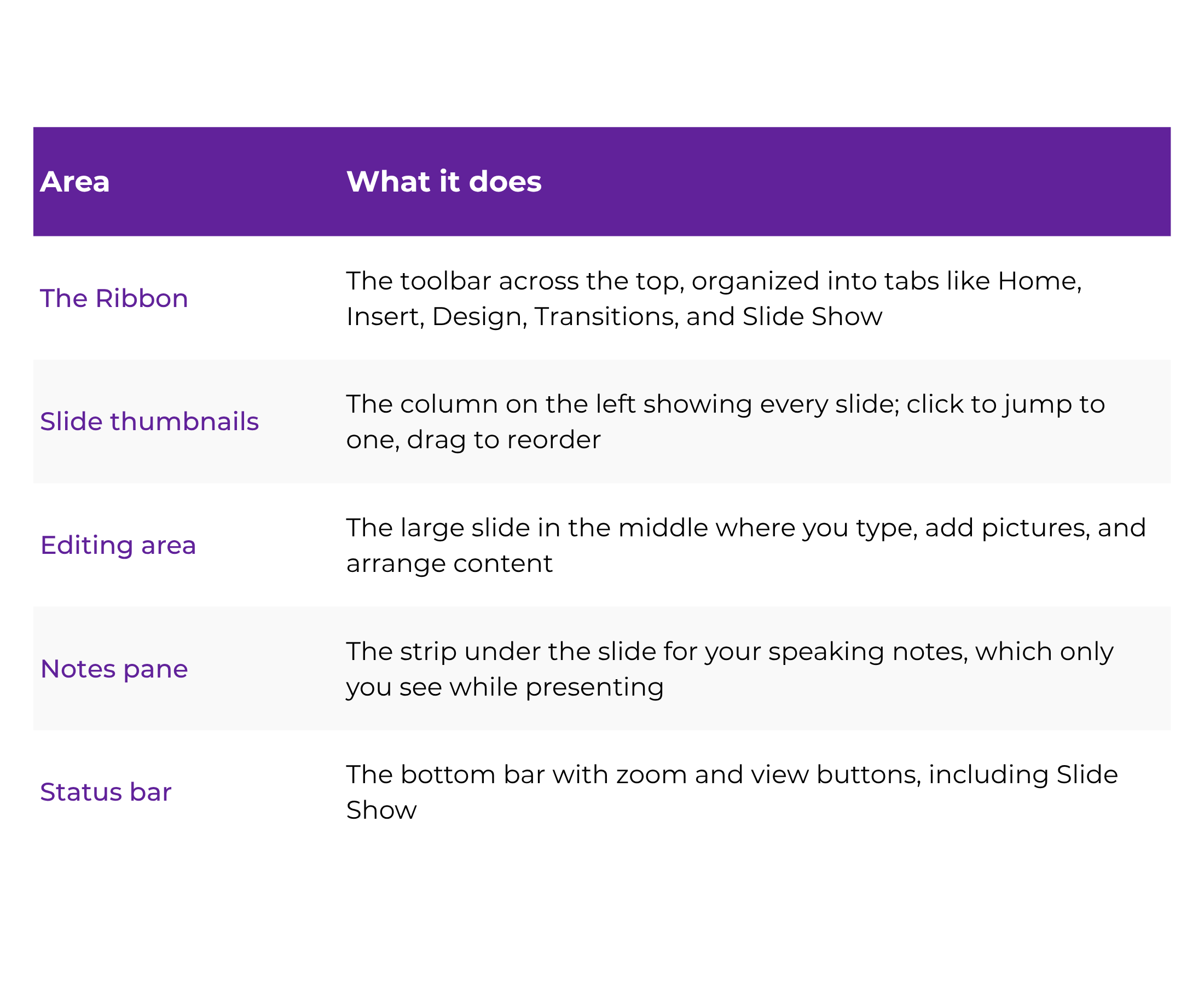
The PowerPoint screen has four main areas: the Ribbon at the top, the slide thumbnails on the left, the large editing area in the middle, and the Notes pane at the bottom. Once you know these, you can find almost anything.

Can’t see the Notes pane?
Click Notes in the bottom status bar, or go to View › Notes. It’s easy to hide by accident, and just as easy to bring back.
How Do You Make a PowerPoint Presentation Step by Step?
Start a new presentation, choose a theme, add slides using built-in layouts, type your content into the placeholders, add a visual or two, then preview it in Slide Show. Here’s the full process for your first deck:
-
Open PowerPoint and choose a theme. On the start screen, pick a simple, clean theme (fewer decorations is better). You can change it later from the Design tab.
-

Write your title slide. Click into the placeholder boxes and type your presentation title and your name or team.
-

Add new slides with layouts. Go to Home › New Slide (or press Ctrl + M) and pick a layout such as “Title and Content” or “Two Content.”
-

Type into the placeholders. Use the dotted boxes the layout gives you instead of drawing your own text boxes. This keeps everything lined up.
-

Insert a picture, icon, or chart. Use the Insert tab to add images, icons, or a simple chart where it helps explain your point.
-

Add speaker notes. Put the details you want to say in the Notes pane, so your slides stay short.
-

Preview and save. Press F5 to run the show from the beginning, fix anything that looks off, and save to OneDrive so you can open it from anywhere.
That’s it. Seven steps, and you have a real presentation. Everything else is polish.
What Makes a PowerPoint Slide Look Professional?
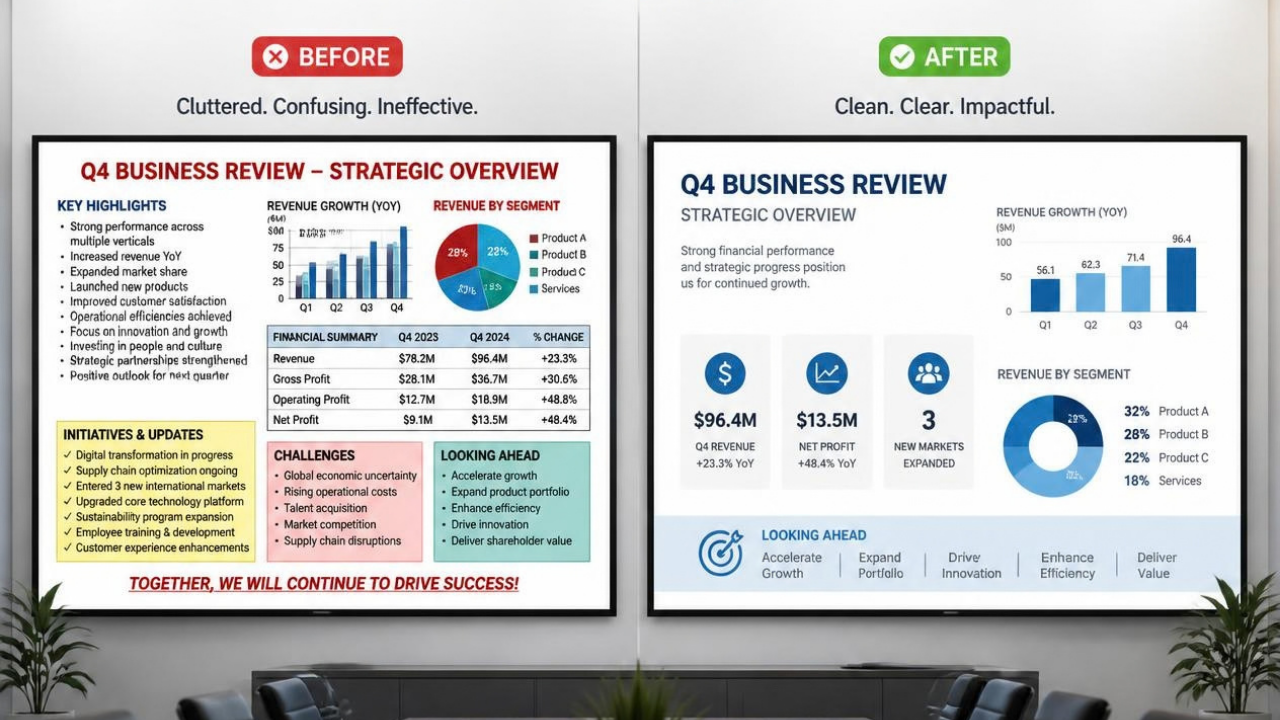
Professional slides are simple: one main idea per slide, large readable fonts, lots of white space, consistent colors, and visuals that support the message instead of decorating it.
Less really is more.
-
One idea per slide. If you need to say two things, make two slides. Slides are free.
-
Keep text short. Aim for a few short bullet points, not full paragraphs. Your voice carries the detail.
-
Use big fonts. A good rule of thumb is at least 24 pt for body text and larger for titles, so people in the back of the room (or on a small laptop screen) can read it.
-
Stick to one theme. Same fonts and colors on every slide makes you look organized and polished.
-
Choose strong contrast. Dark text on a light background (or the reverse) is easiest to read.
-
Use visuals with a purpose. A clear chart or relevant photo beats clip art every time.

What Are the Most Common PowerPoint Mistakes Beginners Make?
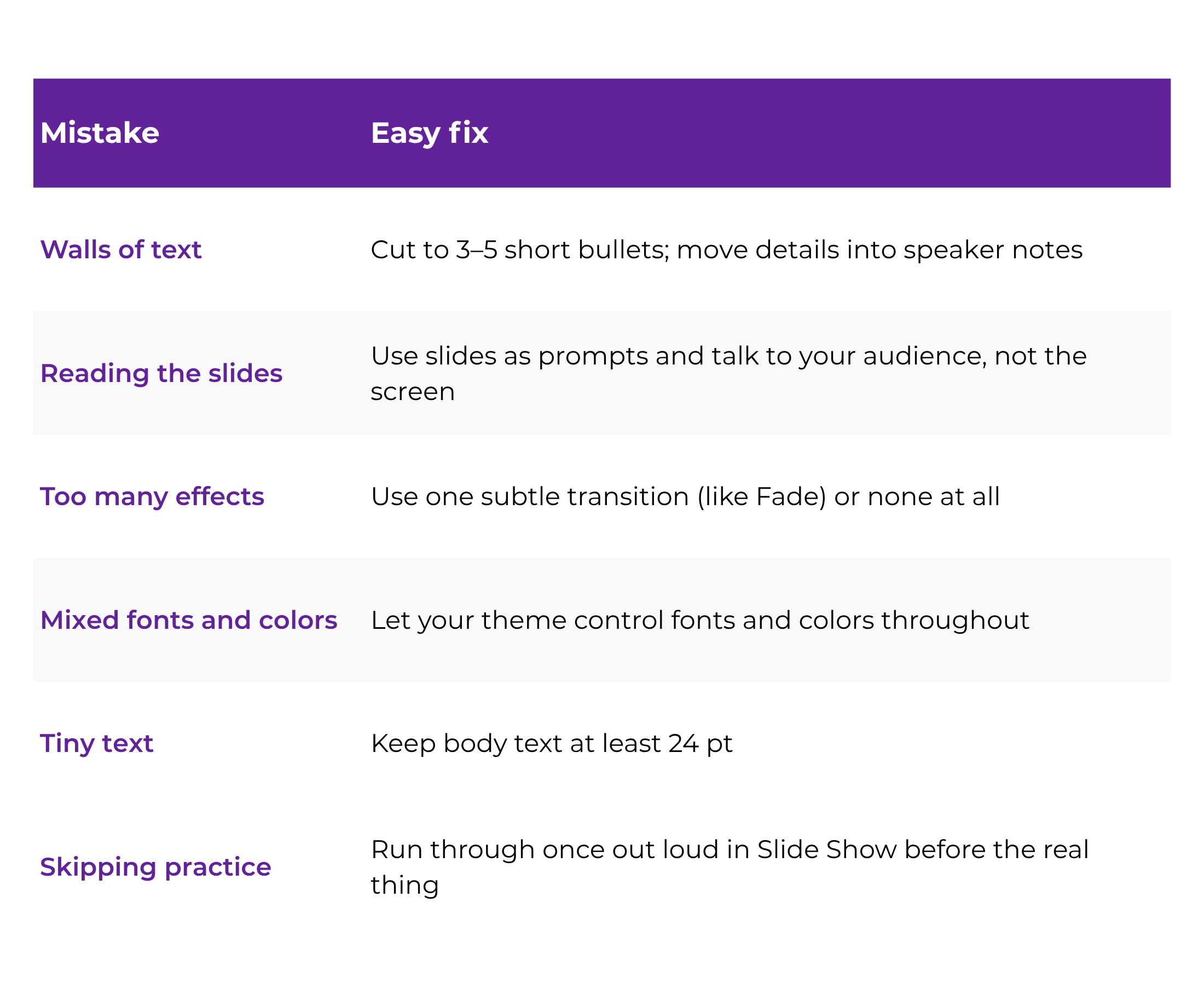
The most common beginner mistakes are putting too much text on a slide, reading slides word for word, using too many fonts or animations, and not practicing beforehand. The good news: every one of these is easy to fix.

How Do You Present a PowerPoint With Confidence?
Use Presenter View, keep your notes handy, and practice out loud at least once. Presenter View shows you your notes, the next slide, and a timer on your screen, while your audience sees only the current slide.
A few simple tools make presenting much less stressful:
-
Presenter View: turns on automatically in many setups when you connect a second screen, or find it under the Slide Show tab.
-
Start from the beginning: press F5. Start from the current slide: press Shift + F5.
-
Move through slides: use the arrow keys or spacebar.
-
Pause the room’s attention: press B to black out the screen, and press it again to come back.
-
Practice with feedback: PowerPoint’s Rehearse with Coach (Speaker Coach) can give you feedback on pacing and filler words, where available in your version.
Presenting in Microsoft Teams? You can share your PowerPoint directly in the meeting. Our Microsoft Teams course walks through that without the panic.
Can PowerPoint Design Slides for You?
Yes. PowerPoint Designer suggests professional layouts for your slide automatically, and Microsoft Copilot in PowerPoint can draft whole slides or presentations from a simple prompt. Both are great for beginners who worry about design.
Designer appears when you add content to a slide. Look for Designer on the Home or Design tab, then click any suggestion to apply it. Copilot can create a draft presentation, summarize a long deck, or add a slide on a topic you describe.
One honest note: Designer and Copilot depend on your Microsoft 365 version and plan, and Copilot usually requires a separate license. Either way, treat AI as a helpful first draft. You still decide what the message is, and that’s the part that makes a presentation yours. To build that confidence with AI tools, see our AI & ChatGPT Masterclass.
Designer appears when you add content to a slide. Look for Designer on the Home or Design tab, then click any suggestion to apply it. Copilot can create a draft presentation, summarize a long deck, or add a slide on a topic you describe.
One honest note: Designer and Copilot depend on your Microsoft 365 version and plan, and Copilot usually requires a separate license. Either way, treat AI as a helpful first draft. You still decide what the message is, and that’s the part that makes a presentation yours. To build that confidence with AI tools, see our AI & ChatGPT Masterclass.
Why Do PowerPoint Skills Matter for Your Career?
PowerPoint skills matter because presenting ideas clearly makes you more visible at work, and visibility is what leads to trust, bigger projects, and promotions. A clean, well-organized deck signals that you’re prepared and capable.
For professionals over 40, this is a real advantage. You already have the experience and the judgment. PowerPoint simply gives you a professional way to show it, whether that’s a team update, a proposal to leadership, or a presentation in a job interview.
PowerPoint also works hand in hand with the rest of Microsoft 365. You can bring in charts from Microsoft Excel and pull in content from Microsoft Word, so each skill you learn makes the others easier.
For professionals over 40, this is a real advantage. You already have the experience and the judgment. PowerPoint simply gives you a professional way to show it, whether that’s a team update, a proposal to leadership, or a presentation in a job interview.
PowerPoint also works hand in hand with the rest of Microsoft 365. You can bring in charts from Microsoft Excel and pull in content from Microsoft Word, so each skill you learn makes the others easier.
Frequently Asked Questions
How long does it take to learn PowerPoint?Is it really too late to learn computer skills at 50 or older?
Most beginners can build a simple, professional presentation after a few hours of guided practice. Getting truly comfortable, including design choices and presenting, usually takes a couple of weeks of short, regular practice.
Do I need design skills to make good PowerPoint slides?
No. Built-in themes, slide layouts, and PowerPoint Designer handle most of the visual work. Following a few simple rules, like one idea per slide and large readable text, matters far more than artistic talent.
How many words should be on a PowerPoint slide?
As few as possible. A good guideline is a title plus three to five short bullet points. Put the extra detail in your speaker notes and say it out loud instead of writing it on the slide.
What is the difference between PowerPoint and Google Slides?
Both create slide presentations. PowerPoint is part of Microsoft 365 and has more advanced features, while Google Slides is part of Google Workspace and runs in a web browser. Many workplaces use PowerPoint, so it is a valuable skill to list on your resume.
Where should a beginner start with PowerPoint?
Start by learning the main parts of the screen, then build one short presentation using a theme and the built-in layouts. A structured beginner course, like the Wanna Be Tech Savvy Microsoft PowerPoint course, shows you what to learn in the right order.
How to Build Confident, Professional Slides: Your Next Step

Learning Microsoft PowerPoint isn’t about becoming a designer. It’s about sharing your ideas clearly and feeling confident when it’s your turn to present. Start with a simple theme, one idea per slide, and a quick practice run. When you’re ready for a clear, guided path, explore all Wanna Be Tech Savvy courses and take the next small step.