
Mastering Microsoft Outlook: Email Habits That Save You Hours Every Week

Oct 2 / Wanna Be Tech Savvy

If your inbox feels like a second job, you’re not alone — and you’re not doing anything “wrong.” Most of us were simply never taught how to use Microsoft Outlook on purpose. The good news: a handful of simple Outlook email habits can give you back hours every week, without learning anything technical.

This guide walks you through the 10 habits that make the biggest difference, in plain English, with the exact clicks to get started. Pick two or three to try this week. You’ll feel the difference by Friday.

The Short Version

The Microsoft Outlook habits that save the most time are: checking email in batches, handling each message once, turning on Focused Inbox, using a simple folder system, setting up Rules, creating Quick Steps, saving email templates, flagging for follow-up, searching instead of scrolling, and letting Copilot summarize long threads. Start with Rules and templates — they save time automatically, every single day.
IN THIS GUIDE
Professional using Microsoft Outlook email habits to keep an organized inbox.

Why does email take up so much of the workday?

Email takes over the workday because most people react to it all day long instead of managing it on purpose. Every new message pulls your attention away from real work, and the time it takes to refocus adds up quickly.

The fix isn’t working harder or answering faster. It’s building a few Microsoft Outlook habits that do the sorting, filing, and reminding for you — so your inbox supports your day instead of running it.

What are the best Microsoft Outlook habits to save time?

Here are the 10 Outlook email habits that save professionals the most time, starting with the simplest mindset shifts and building up to the features that work for you automatically.

01 Check Email in Batches, Not All Day

Set two to four specific times a day to check email, and close Outlook (or silence it) in between. This one habit protects your focus more than any feature.

To quiet the constant pop-ups in the new Outlook, go to Settings → General → Notifications and turn off desktop alerts. In classic Outlook, go to File → Options → Mail and uncheck Display a Desktop Alert. Don’t worry — truly urgent matters almost always come by phone or chat.

02 Handle Each Email Once (The 4 D’s)

When you open an email, make a decision right away instead of reading it and leaving it for later. Re-reading the same message three times is one of the biggest hidden time-wasters.

Use the simple “4 D’s” to decide:

  • Delete (or archive) it if you don’t need it.
  • Do it now if it takes less than two minutes.
  • Delegate it by forwarding to the right person.
  • Defer it with a flag if it needs more time (see habit #8).

03 Turn On Focused Inbox

Focused Inbox splits your mail into two tabs — Focused for important messages and Other for newsletters and notifications. You see what matters first, and the rest waits quietly.

Turn it on from the View tab by selecting Show Focused Inbox (or in the new Outlook, Settings → Mail → Layout). If a message lands in the wrong tab, right-click it and choose Always Move to Focused — Outlook learns from you.

04 Use a Simple Folder System (Fewer Folders, Not More)

You don’t need dozens of folders — three or four simple ones work faster. Too many folders means more time deciding where things go and more time hunting later.

Try this beginner-friendly setup:

  • Action — emails you need to do something about
  • Waiting — emails where you’re waiting on someone else
  • Archive — everything you’re done with but might need later (Outlook’s Archive button does this in one click)

Outlook's search is powerful enough to find anything in Archive in seconds, so you don't need a perfect filing system. The same idea works for the documents on your computer, too: a few simple folders beat a complicated system every time.

05 Let Rules Sort Your Email Automatically

Rules tell Outlook to automatically move, flag, or categorize emails the moment they arrive.

Set a rule once and it works for you every day, forever.

The easiest way to create one:

1. Right-click an email from a sender you hear from often (like a newsletter or a weekly report).

2. Choose Rules → Create Rule (or Rules → Always move messages from…).
3. Pick the folder you want those emails to go to, and select OK.

Great first rules: move newsletters to a “Read Later” folder, send automated system notices to their own folder, and flag anything from your manager.

06 Create Quick Steps for Repeated Actions
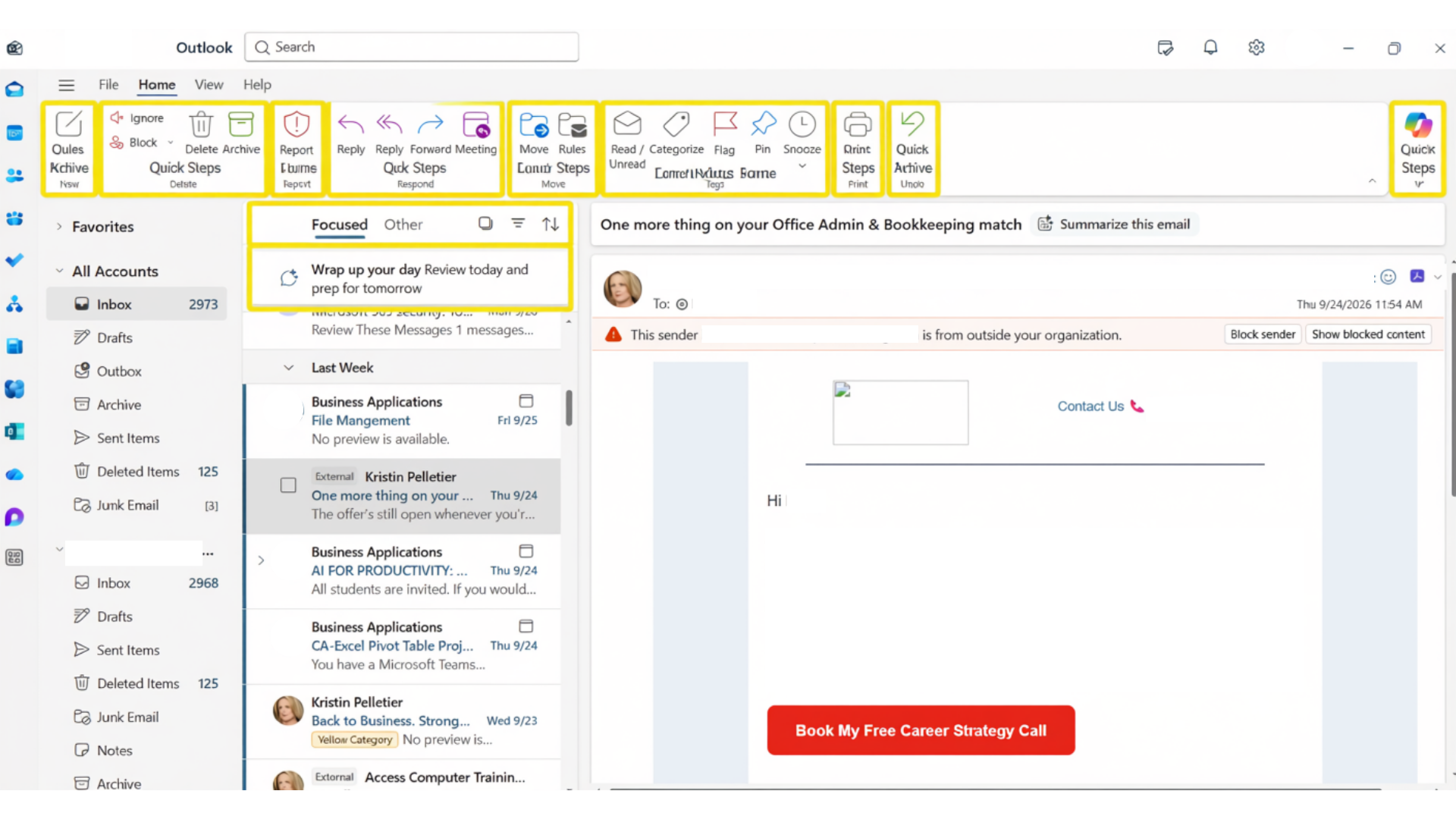
Quick Steps combine several clicks into one button — like “mark as read, flag, and move to Action.” If you do the same thing to emails over and over, a Quick Step does it in one click.

Find them on the Home tab under Quick Steps. Choose Create New, give it a name, and add the actions you want. A popular one to start with: “Done” — marks the email as read and moves it to Archive.

Microsoft Outlook Rules and Quick Steps that automate email sorting and save time.

07 Save Email Templates for Replies You Write Often

If you type the same kind of email again and again, save it as a template and insert it in one click. Think meeting confirmations, client follow-ups, or “here’s the info you asked for” replies.

In the new Outlook and Outlook on the web, open a new message and select My Templates (you may find it under the … or Apps menu) to save and reuse text. In classic Outlook, select the text and use Insert → Quick Parts → Save Selection to Quick Part Gallery. Personalize the first line, and you’re done in seconds.

08 Flag Emails and Follow Up on Purpose

Flag any email that needs action later so it shows up in your To Do list instead of getting lost in your inbox. Your inbox stops being your to-do list — and that’s a huge relief.

Click the small flag icon on any message to mark it for follow-up. Flagged emails appear in Microsoft To Do and in Outlook’s task list, so you can review them at a set time each day. Add color Categories (like “Client,” “Finance,” or “Team”) to spot priorities at a glance.

09 Search Instead of Scrolling

Use Outlook’s search bar to find any email in seconds instead of scrolling through folders. Searching is almost always faster than filing.

Type a name, a word from the subject, or try these simple search helpers:

    • from:Sarah — emails from Sarah
    • subject:invoice — emails with “invoice” in the subject
    • hasattachments:yes — emails with attachments

You can also use the filter options next to the search bar to narrow by date, attachments, or unread messages — no codes required.

10 Let Copilot Summarize and Draft for You

Microsoft Copilot in Outlook can summarize a long email thread in a few sentences and help you draft a reply. It’s a big time-saver for those 20-message conversations nobody wants to read from the top.

Open a long thread and look for Summarize (or Summary by Copilot) at the top of the conversation. When replying, choose Draft with Copilot, describe what you want to say, and edit the result so it sounds like you.

Honest note on Copilot
Copilot features depend on your Microsoft 365 plan and your employer’s settings, and they change over time. Every other habit in this guide works without Copilot — think of AI as a bonus on top of strong basics.

Which Outlook keyboard shortcuts save the most time?
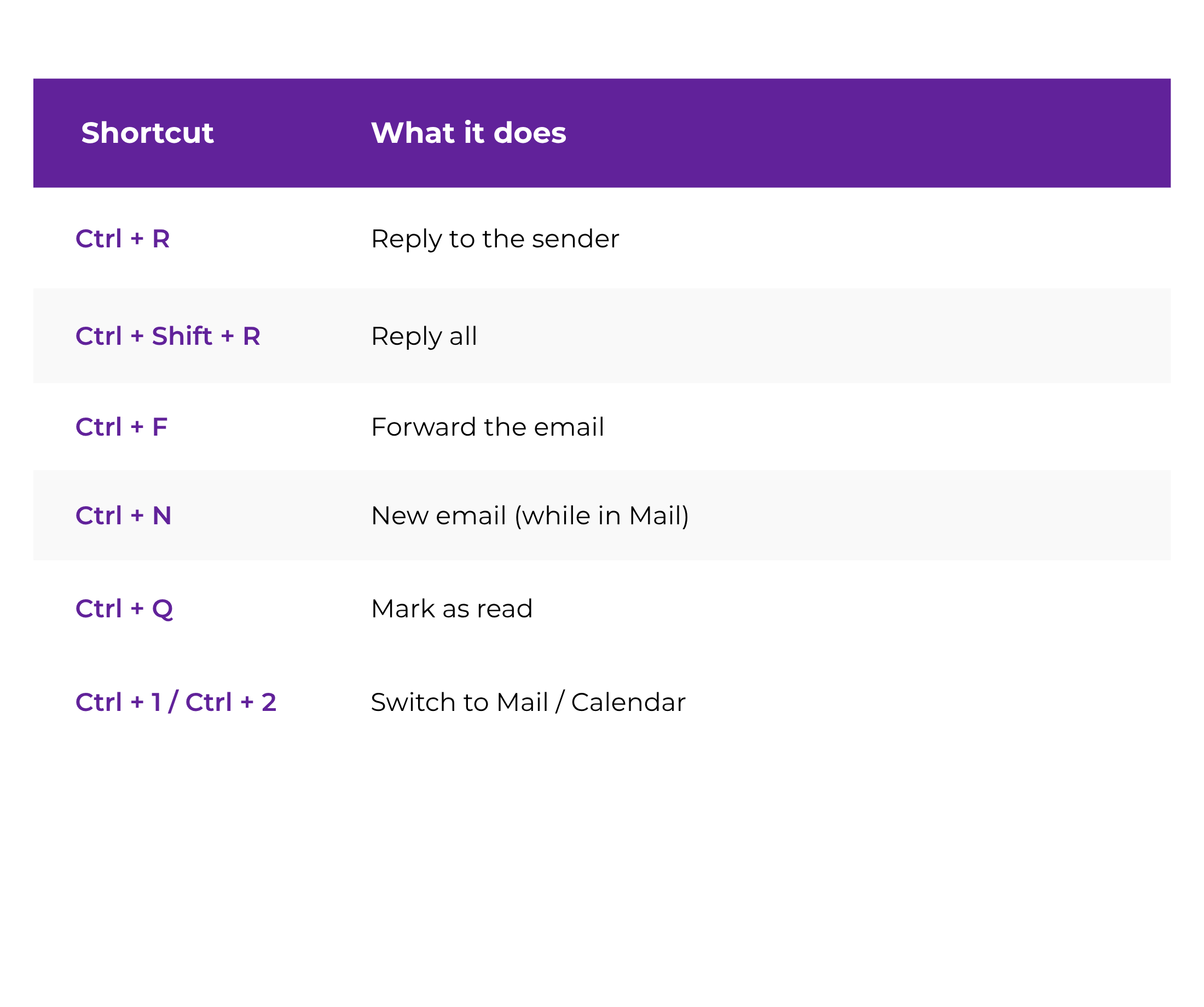
The Outlook shortcuts that save the most time are the ones you use every day: replying, forwarding, and switching between mail and calendar. Learn these six and you’ll reach for the mouse far less often.

Bonus time-savers

Use Schedule Send (the arrow next to Send) to write emails now and deliver them during business hours. Use Ignore or Unsubscribe to stop busy threads and newsletters you no longer read.

Does it matter if I use the new Outlook or classic Outlook?

Not much — every habit in this guide works in both the new Outlook and classic Outlook. A few buttons have slightly different names or live in different menus, but the features themselves are the same.The Outlook shortcuts that save the most time are the ones you use every day: replying, forwarding, and switching between mail and calendar. Learn these six and you’ll reach for the mouse far less often.

If you can’t find something, type what you’re looking for (like “rules” or “templates”) into the search box at the top of Outlook. It will point you to the right setting.

How do I make these Outlook habits stick?

Start small: choose two habits this week, practice them every day, and add one new habit each week after that. Small, steady changes stick far better than a one-time inbox overhaul.

Here’s a simple one-week starter plan:

  • Day 1: Turn on Focused Inbox and turn off desktop alerts.
  • Day 2: Create your Action, Waiting, and Archive folders.
  • Day 3: Set up two Rules for your most common senders.
  • Day 4: Save your three most-used replies as templates.
  • Day 5: Build one “Done” Quick Step.
  • Every Friday: Spend 15 minutes clearing flags and archiving what’s finished.
Strong email habits do more than save time. They help you look organized, responsive, and reliable — the kind of Microsoft Office skills employers expect and notice.

Ready to Take Control of Your Inbox?

Our Microsoft Outlook course walks you through every habit in this guide, step by step, with friendly, plain-English lessons built for busy professionals who want their time back.

Frequently Asked Questions

Mastering Microsoft Outlook: Small Habits, Hours Saved

Mastering Microsoft Outlook isn’t about knowing every button — it’s about a few smart email habits that quietly save you time every day. Start with batching and Focused Inbox, add Rules and templates, and let Outlook handle the busywork. When you’re ready for a clear, guided path, explore all Wanna Be Tech Savvy courses and take the next small step.