
Digital clutter is one of the quietest productivity killers there is. Files pile up in random folders, important documents vanish into the Downloads folder, and three versions of the same report leave you guessing which one is current. Learning how to organize your computer files like a professional fixes all of that — and the best part is it takes simple habits, not technical expertise.
This guide gives you a calm, repeatable system: a clear folder structure, smart file names, painless version control, and cloud habits that keep everything findable in seconds. Set it up once, maintain it in a few minutes a week, and never lose a file again.
Why File Organization Matters More Than You Think
Most professionals underestimate how much time slips away searching for documents. Research on workplace productivity consistently finds that hunting for files and information eats up a meaningful chunk of the average workweek — time that a good system gives right back to you.
Poor organization also causes bigger problems than lost minutes:
- Digging through multiple folders to find one document
- Saving duplicate versions and losing track of the latest one
- Accidentally sending or using outdated information
- Struggling to share files cleanly with colleagues
A well-organized system flips that: you find files in seconds, share with confidence, and stop second-guessing which version is right. If you want the flip side first, our guide to file management mistakes that cost professionals time is a useful companion.
Start With a Clear Folder Structure
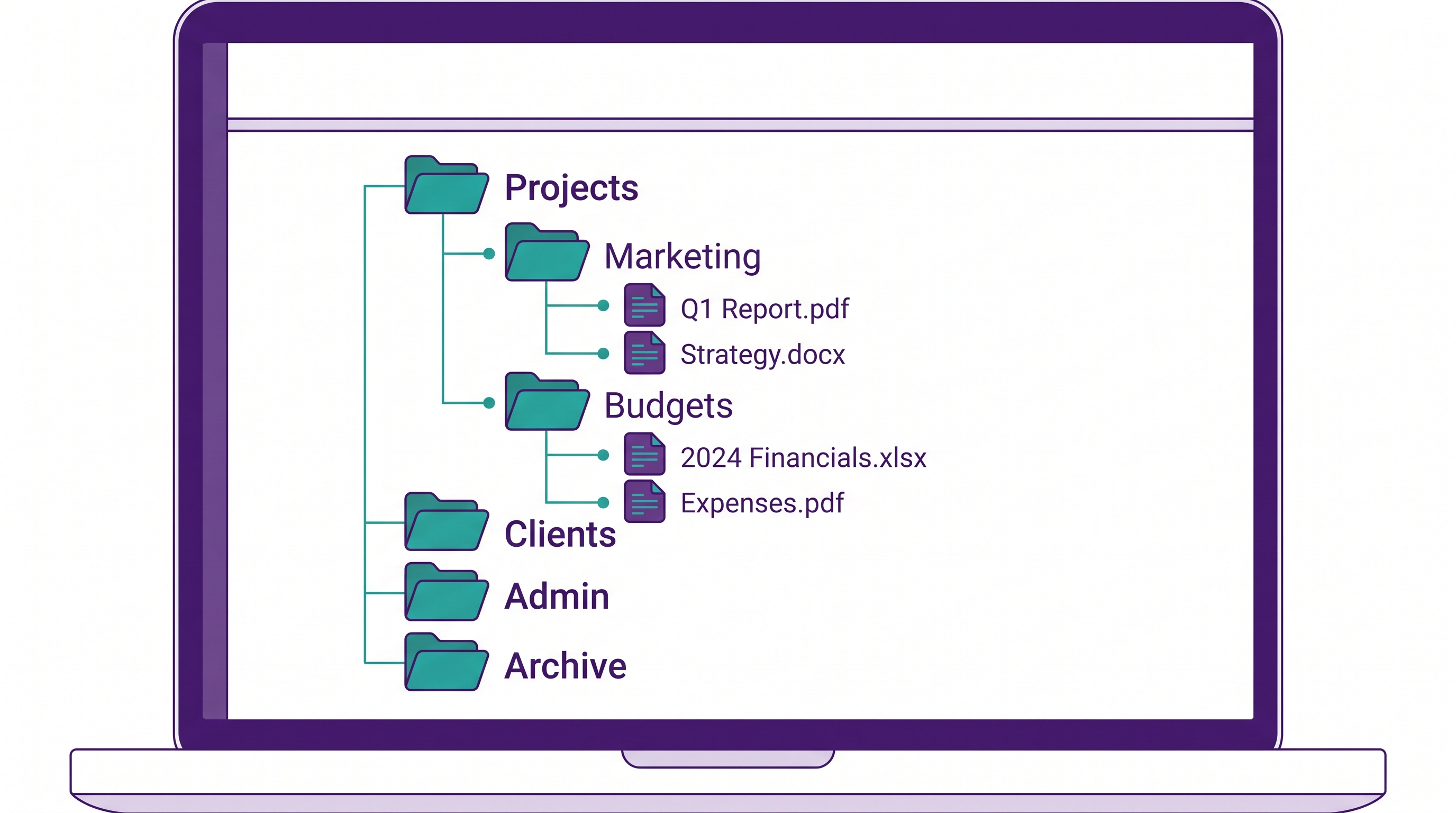
The foundation of organizing your computer files is a folder structure that mirrors how you actually work. Instead of dumping everything in one place, create a handful of top-level folders by category, then nest subfolders inside them.
Common top-level categories include:
- Projects — one subfolder per project
- Clients — one subfolder per client
- Admin — contracts, invoices, HR, personal work files
- Archive — finished or inactive work you want out of the way
For example, under Projects you might have Marketing Campaign, Budget Reports, and Presentations. The goal is to locate files by logic, not memory. Keep it shallow — if you’re clicking through more than three or four levels, simplify.
Use Descriptive File Names
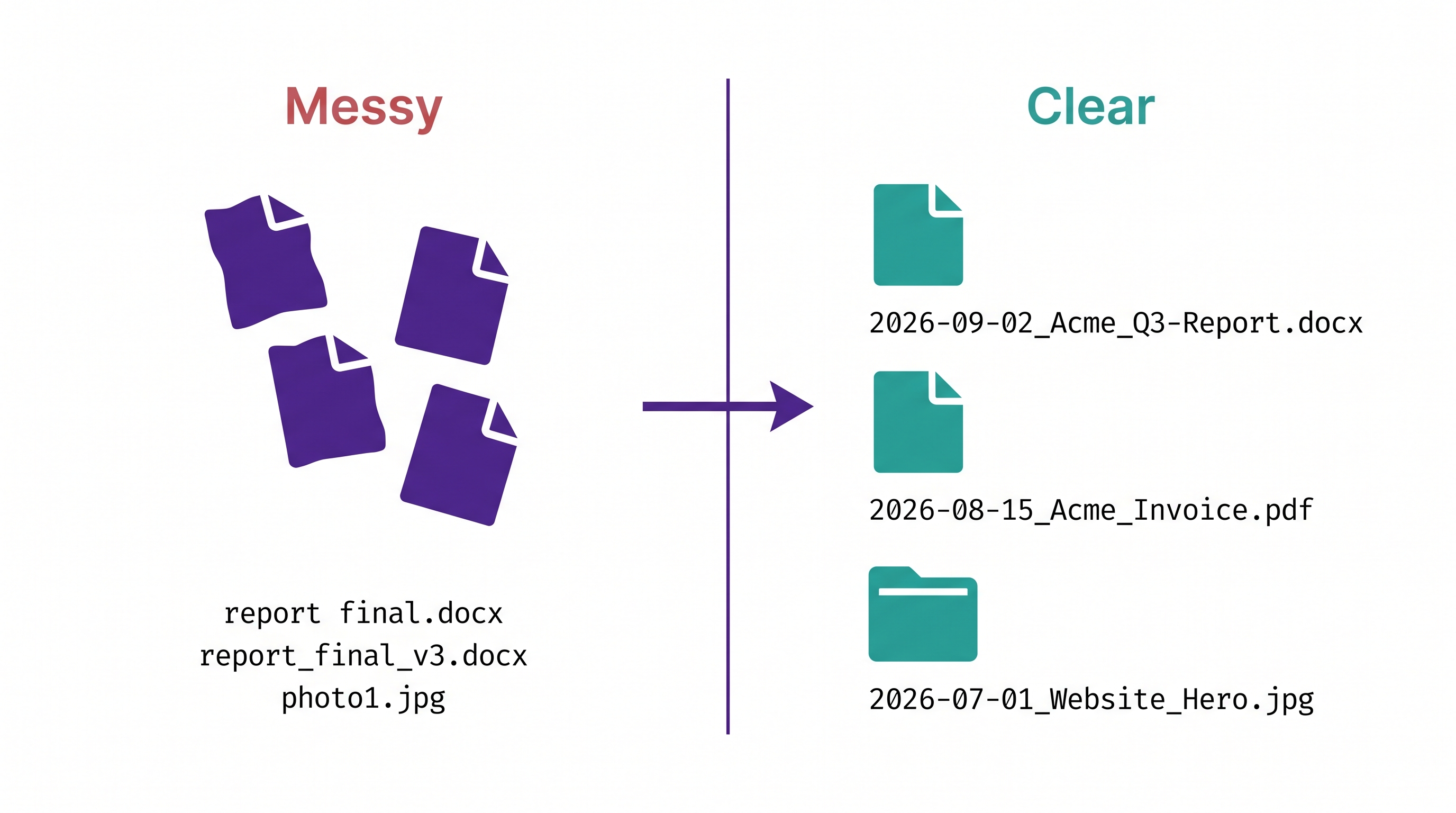
File names do half the organizing work. Generic names like Document1 or Final version make files impossible to find later. A good name tells you what the file is at a glance — without opening it.
- Be specific:
Q3-Marketing-Report, notreport - Include a date in
YYYY-MM-DDformat so files sort chronologically - Stay consistent with capitalization and separators (hyphens or underscores)
- Avoid vague words like final, new, or latest
A Simple File-Naming Formula
When you’re not sure how to name something, this pattern works almost everywhere: YYYY-MM-DD_Project_Description_Version.
| Instead of | Use |
|---|---|
| report final.docx | 2026-09-02_Acme_Q3-Report_v2.docx |
| invoice.pdf | 2026-08-15_Acme_Invoice-1042.pdf |
| photo1.jpg | 2026-07-01_Website_Hero-Image.jpg |
The dates keep everything in order automatically, and anyone (including future you) can understand the file without opening it.
Handle Versions Without the Chaos
The classic mess — report_final, report_final_v2, report_FINAL_real — comes from having no version system. Two calm approaches:
- Simple versioning: add
_v1,_v2and delete or archive the old ones once you’re sure - Let the cloud track it: tools like OneDrive keep a version history automatically, so you can keep one file name and roll back if needed
Pick one and stick with it. Consistency matters more than which method you choose.
Tame Your Downloads Folder
For most people, the Downloads folder is where organization goes to die. Treat it like an inbox, not a storage room:
- Anything you want to keep gets moved to its real folder and renamed
- Everything else gets deleted
- Aim to clear it out weekly so it never becomes a black hole
Use Cloud Storage Wisely
Cloud storage like OneDrive, Google Drive, or Dropbox gives you automatic backup, access from any device, and easy sharing. The key is to mirror your folder structure in the cloud so it stays consistent everywhere — not to create a second, competing mess. Keep active work synced, and archive what you don’t need day to day.
Keep It Organized (This Is the Real Secret)
Any system works on day one — the trick is keeping it up. Beyond the weekly five-minute tidy, save files to the right place as you create them rather than sorting later, and review your structure every few months to prune what you no longer need. Organizing your computer files is a habit, not a one-time project — and once it clicks, it’s effortless.
Want a guided walkthrough? Our file management course and the broader Windows PC & file management fundamentals take you through the whole system step by step. File organization is also one of the core essential computer skills every professional needs.
Turn Digital Clutter Into Calm, Findable Files
Build a file system you’ll actually keep up — with friendly, plain-English lessons designed for beginners who want less stress and more control.
Start the File Management Course →Frequently Asked Questions
How do I organize computer files and folders on Windows?
Create a few top-level folders that match how you work (Projects, Clients, Admin, and Archive), nest subfolders inside them, and give every file a clear, dated name. In Windows File Explorer, build the structure first, move files in by category, and keep it tidy with a quick weekly cleanup.
What is the best way to organize computer files?
Start with a simple, consistent folder structure based on how you work (Projects, Clients, Admin, Archive), give every file a descriptive name with a date in YYYY-MM-DD format, keep one clear version of each document, and back everything up to the cloud. Then maintain it with a quick weekly tidy.
How should I name my files so I can find them later?
Use a consistent pattern like YYYY-MM-DD_Project_Description_Version — for example, 2026-09-02_Acme_Q3-Report_v2.docx. Dates keep files sorted chronologically, and specific names let you understand a file without opening it. Avoid vague words like “final” or “new.”
How do I stop having so many versions of the same file?
Pick one version system and stick with it. Either add _v1, _v2 and delete old versions once you’re sure, or let cloud tools like OneDrive track version history automatically so you can keep a single file name and roll back if needed.
Should I use cloud storage or save files locally?
Both, ideally. Cloud storage gives you automatic backup, access from any device, and easy sharing, while local copies are handy offline. The key is to mirror the same folder structure in both so your organization stays consistent everywhere.
How often should I organize my files?
A quick five-minute weekly tidy — filing loose documents and clearing your Downloads folder — keeps the system healthy. Do a deeper review every few months to archive finished work and prune what you no longer need.
What’s the fastest way to clean up a messy computer?
Set up your folder structure first, then move files into it in batches by category rather than all at once. Start with your Downloads and Desktop, rename as you go, and archive anything old. Doing it in short sessions keeps it from feeling overwhelming.
How to Organize Your Computer Files: Start Today
Knowing how to organize your computer files like a professional comes down to a few durable habits: a clear folder structure, descriptive names, one version, and a quick weekly tidy. Set it up once and it quietly saves you time every single day. When you want a friendly, guided path, explore all Wanna Be Tech Savvy courses and take the first small step.

Empowering everyday people with digital skills that open doors to better careers and bigger opportunities. Learning made simple, practical, and affordable.