If you've ever felt like everyone else got a head start on technology — like there's some invisible class you missed where people learned to "just figure it out" — you're not behind. You just haven't been shown the shortcuts yet.
Here's the good news: some of the easiest AI tools for work are already sitting inside the Microsoft programs you use every day. You don't need a separate app, a new subscription, or a tech background to start using them. Word, Excel, PowerPoint, Outlook, and Teams have all been quietly building in AI features designed to make everyday tasks faster and far less intimidating.
This post is a beginner-friendly walkthrough of the AI features inside Microsoft's most common tools — what they do, why they matter, and exactly where to find them so you can start building digital confidence this week.
Professionals supported by Kristin Pelletier over the past decade
Of professionals say they're expected to use AI at work but haven't been formally trained on it*
Published WBTS courses covering Microsoft tools and AI skills
There's a quiet assumption floating around a lot of workplaces: that AI tools are for the people who already love technology — the early adopters, the ones who read tech blogs for fun. That assumption is wrong, and it's keeping a lot of capable professionals from trying features that were actually built for them.
The AI features now built into Microsoft 365 weren't designed for software engineers. They were designed for the person writing a report at 4:45pm, the person staring at a spreadsheet they didn't build, the person who just wants their inbox to stop feeling like a second job. In other words — they were designed for digital confidence, not digital expertise.
That distinction matters. You don't need to understand how the AI works behind the scenes. You just need to know it's there, what it can help with, and how to ask for what you need — in plain English.
Over the past decade, Kristin Pelletier has supported 700+ professionals in strengthening their digital skills. A recurring theme: the people who felt most "behind" on technology were often just one or two features away from feeling completely capable — they simply didn't know those features existed.
If your organization has Microsoft 365, there's a good chance you already have access to some AI-powered features — they just haven't been pointed out to you. Here's where to look, tool by tool.
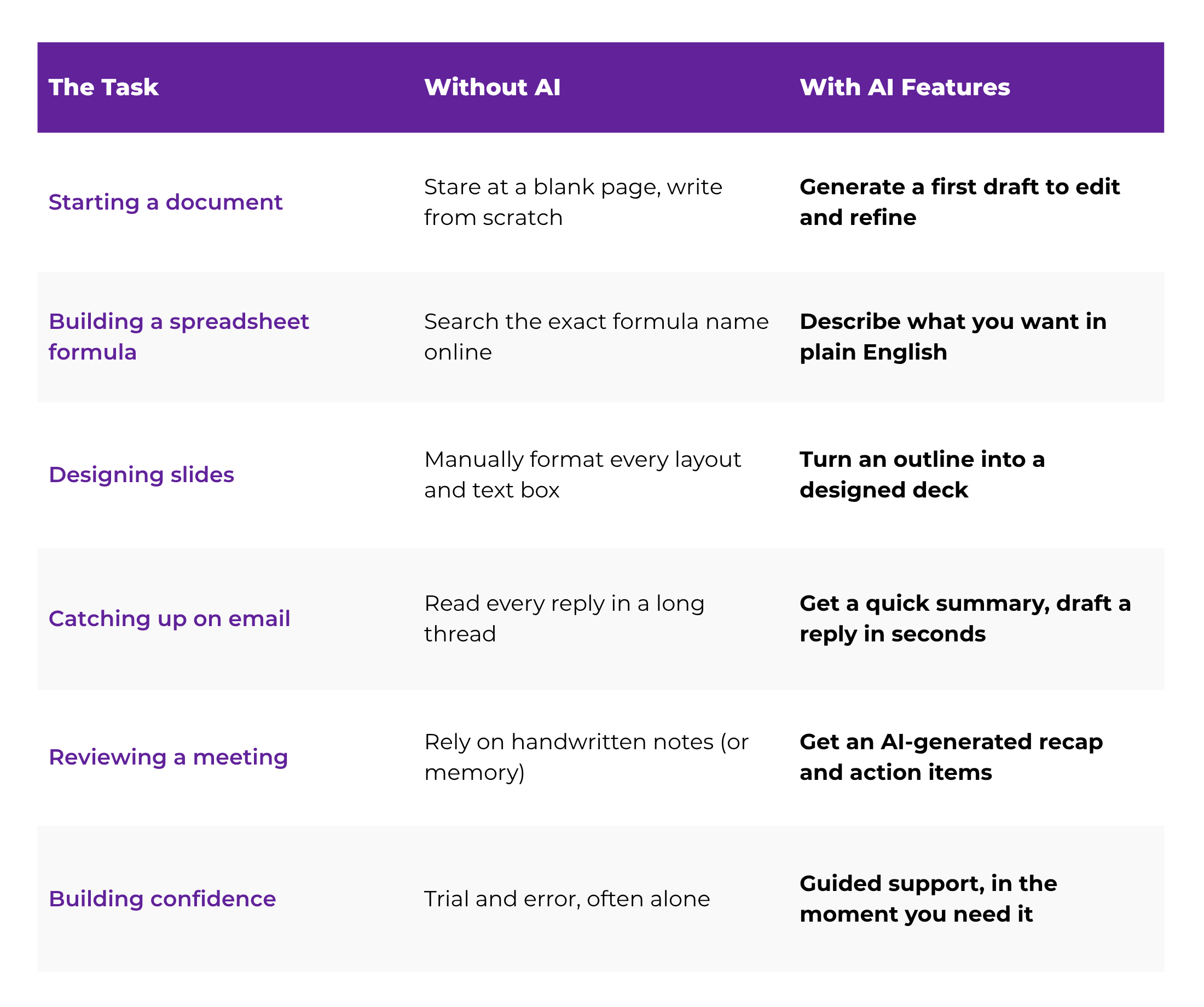
Staring at a blank page is one of the most universally dreaded parts of office work. AI features in Word can generate a first draft from a short prompt, rewrite an awkward paragraph in a more professional tone, or summarize a long document into a few clean bullet points.
For beginners, this is less about replacing your writing and more about removing the blank-page paralysis. You start with something — even an imperfect something — and edit from there. That's a much easier mental task than creating from nothing.
You no longer need to memorize VLOOKUP syntax to get useful answers from your data. AI features in Excel let you describe what you're trying to do — "show me total sales by region" — and get a formula, chart, or summary built for you.
This is one of the easiest AI tools for work to start with, because the payoff is immediate: you ask, you get a working result, and you can ask it to explain what it did so the knowledge actually sticks.
Design has always been the part of presentations that eats the most time for non-designers. AI features in PowerPoint can take a rough outline or a Word document and turn it into a formatted, visually organized slide deck — layout, structure, and design suggestions included.
You still bring the substance and the judgment about what matters. AI just handles the part that used to take hours of dragging text boxes around.
A crowded inbox is one of the most common sources of daily overwhelm. AI features in Outlook can summarize long email threads so you don't have to scroll through twelve replies, suggest draft responses you can edit instead of write from scratch, and help you keep tone consistent when you're replying to something sensitive.
Trying to participate in a meeting while also taking detailed notes is a losing game. AI features in Teams can generate a meeting recap, highlight key discussion points, and even surface action items — so you can actually be present in the conversation instead of buried in a notebook.
"You don't have to master AI. You just have to know it's sitting right there in the tools you already open every day — waiting to make the boring parts faster."
You don't need to learn all five tools at once. Pick one task you already do regularly, and start there. Here's a simple sequence to follow:
Maybe it's email, maybe it's spreadsheets, maybe it's slides. Start with whatever already takes up the most of your week — that's where the time savings will be most noticeable, fastest.
In most Microsoft apps, AI features live behind a small icon in the ribbon or a side panel labeled "Copilot" or similar. If you're not sure where it is, a quick search like "where is Copilot in [app name]" will point you to it.
Don't start with your most important deliverable. Try summarizing an old email thread, or asking for a formula on a spreadsheet you already understand. Build trust in the tool before relying on it for something that matters.
✓ Example: "Summarize this email thread in three bullet points"
AI gives you a starting point, not a finished product. Read what it generates, fix what doesn't sound like you, and correct anything that's off. This is how you stay in control while still saving time.
Once one feature feels comfortable, move to the next tool. Small, steady additions build real digital confidence — far more effectively than trying to learn everything in a single weekend.
✓ WBTS courses are structured around exactly this kind of progression
AI features make Microsoft tools more approachable, but they work best when you understand the basics of the tool underneath. If you don't know what a pivot table is for, AI can build one — but you still need to know what to ask for and whether the result actually answers your question.
That's the real value of pairing AI with structured learning: AI handles the mechanics, while a solid foundation helps you direct it well. The professionals who get the most out of these tools aren't the ones who memorized every keyboard shortcut — they're the ones who understand enough of the fundamentals to know what good output looks like.
Look for training that covers the core tool first — Word, Excel, Outlook, Teams — and then layers in AI features on top. That order matters: AI is far more useful once you understand what you're asking it to do, and why.
WBTS offers dedicated courses for Microsoft Word, Excel, PowerPoint, Outlook, and Teams — each built for professionals who didn't grow up with these tools, plus a standalone AI & ChatGPT Masterclass to help you apply AI features with confidence across all of them.
Explore the course →
Nobody sent out a memo when AI features quietly appeared inside Word, Excel, and Outlook. If you missed them, that's not a personal failing — it's just how software updates work. Most people are discovering these features the same way you are: a little late, and a little unsure where to start.
The professionals who get ahead from here aren't the ones who already knew everything. They're the ones who started experimenting — one tool, one feature, one small win at a time.
Digital confidence isn't built overnight. It's built one feature you finally tried.
Ready to Build Real Skills?
WBTS courses cover the Microsoft tools you already use every day — plus the AI features that make them easier. Designed for professionals who want real, practical skills without the steep learning curve. Join 700+ professionals who've already made the shift.