You've probably been hearing the word "Copilot" a lot lately. It's showing up in meetings, in Microsoft 365, in job postings, and in conversations about what professionals need to know right now. But what actually is Microsoft Copilot — and do you really need to understand it?
If you've been nodding along when others talk about it but quietly wondering what they actually mean, this post is for you. No tech jargon. No assumptions. Just a clear, honest explanation of what Microsoft Copilot is, what it does, and how it fits into the work you're already doing.
Let's start at the beginning.
Microsoft 365 apps where Copilot is being integrated — Word, Excel, Outlook, Teams, and more
Professionals supported by Kristin Pelletier in building digital confidence over the past decade
Published courses at WBTS — including AI & Microsoft skills built for working professionals
Microsoft Copilot is an AI-powered assistant built directly into Microsoft's apps and tools — the same apps most professionals already use every day. Think Word, Excel, Outlook, Teams, and PowerPoint.
The simplest way to understand it: Copilot is like having a knowledgeable assistant inside your Microsoft programs — one you can ask questions, give instructions, and get real help from. Instead of doing everything manually step by step, you can describe what you need and Copilot helps you get there faster.
For example, instead of spending 30 minutes drafting an email from scratch, you might type: "Write a professional follow-up email to a client after our meeting today." Copilot writes a draft. You review, adjust, and send. Done.
It's not magic, and it's not perfect — but it is genuinely useful. And for professionals who want to work smarter without needing a technology degree, that matters.
Microsoft Copilot is an AI assistant built into the Microsoft tools you already use. You type what you need in plain English, and it helps you create, summarize, format, or analyze — faster than doing it manually.
One of the things that makes Copilot different from other AI tools is that it lives inside Microsoft 365 — not as a separate app you have to open. It's woven into the programs you're already in all day. Here's a quick look at where you'll encounter it:
Copilot in Word can help you draft documents, rewrite sections, summarize long reports, change the tone of your writing, or generate a first draft from a bullet-point list. If writing takes up a significant part of your workday, this is where many professionals feel the biggest impact immediately.
Copilot in Outlook can draft email replies, summarize long email threads so you don't have to read every message, suggest responses, and help you manage your inbox more efficiently. It's especially helpful when you're coming back from time off and facing a mountain of messages.
Copilot in Teams can summarize meetings in real time, recap what was discussed after the fact, capture action items automatically, and help you catch up on conversations you missed. This is one of the most immediately useful features for professionals who are in back-to-back meetings all day.
Copilot in Excel can analyze data, suggest formulas, create charts, identify trends, and answer questions about your spreadsheet in plain English. You don't have to know the formula — you can just describe what you're trying to find out, and Copilot helps you get there.
Copilot in PowerPoint can generate a presentation from a document or a prompt, suggest slide layouts, write speaker notes, and help you clean up or restructure an existing deck. Great when you need professional-looking slides fast.
"Copilot isn't a replacement for your skills — it's a tool that makes the skills you already have go further, faster."
Getting a clear picture of Copilot's actual capabilities helps you use it well — and avoid disappointment. Here's an honest side-by-side look:
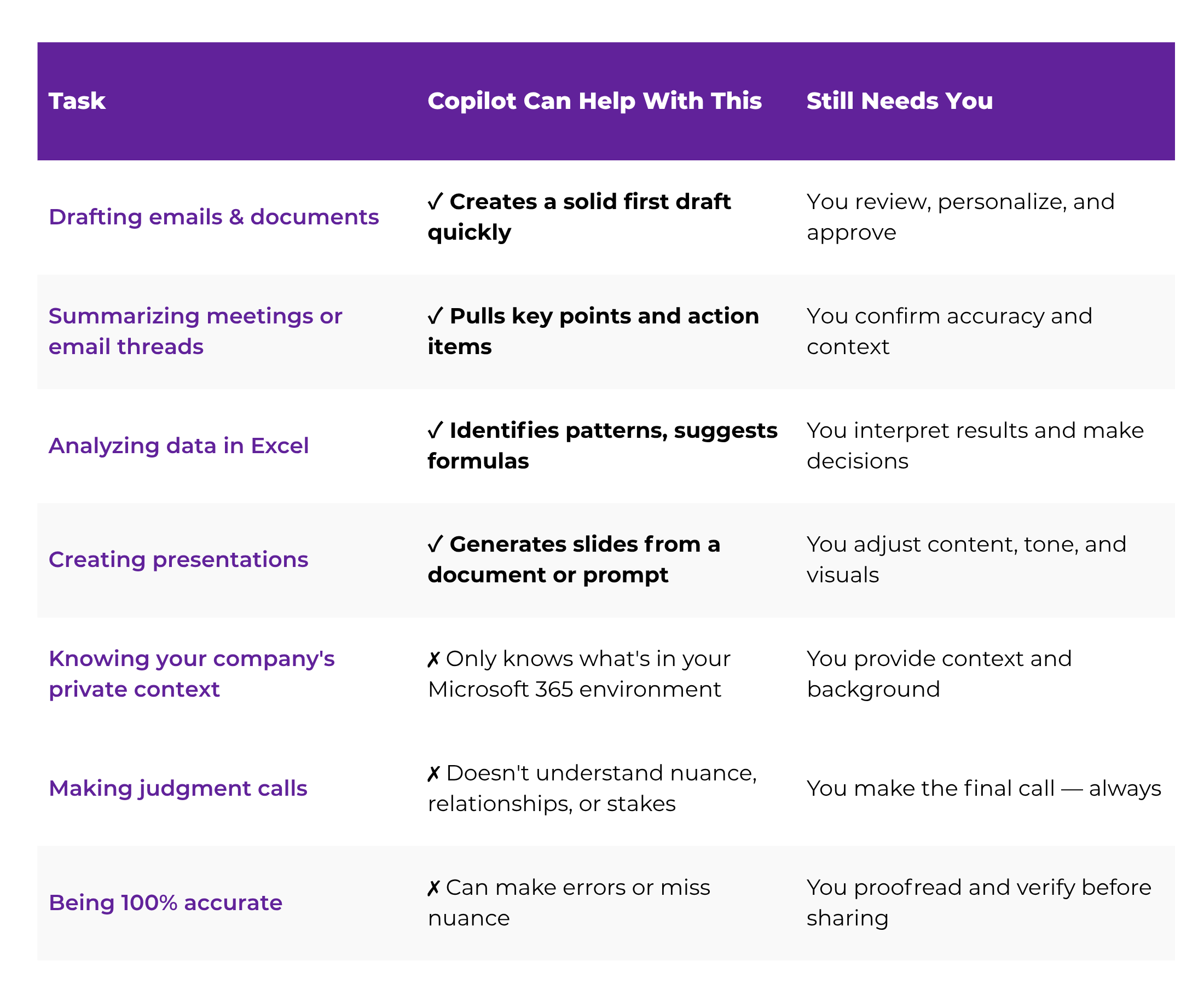
The pattern here is consistent: Copilot handles the time-consuming first pass; you bring the judgment, context, and final approval. That's a healthy way to think about any AI tool in your workflow.
The best approach to learning any new tool is the same: start small, stay practical, and build from there. Copilot is no different. Here's a simple starting sequence designed for professionals who want to get comfortable without feeling like they need to become an AI expert first.
Copilot availability depends on your organization's Microsoft 365 subscription. Look for a small Copilot icon (it looks like a colorful sparkle or the Microsoft "M" with color accents) in Word, Outlook, or Teams. If you don't see it, check with your IT department or administrator — it may need to be enabled.
✓ You can also find Copilot at copilot.microsoft.com as a standalone tool
Don't try to learn Copilot in every app at once. Pick the one you spend the most time in — probably Outlook or Word — and get comfortable there first. The confidence you build in one place transfers naturally to the others.
Try asking Copilot to summarize an email thread, draft a reply, or create a short agenda for an upcoming meeting. Real tasks produce real results — and that's what builds trust in a tool quickly. Generic experiments rarely stick.
✓ Example: "Summarize this email thread and list any action items."
Copilot's output is a starting point, not a finished product. Read it carefully, make changes that reflect your voice and your knowledge of the situation, and send or use it as your own. This habit protects your professional reputation and helps you get better at directing the AI.
Once you're comfortable in your first app, try something new — a meeting summary in Teams, a data question in Excel, a presentation draft in PowerPoint. Slow and steady beats trying to learn everything at once, and each win compounds your confidence.
✓ WBTS AI & ChatGPT Masterclass covers AI prompting skills that apply directly to Copilot
A lot of professionals get stuck at the same point: they open Copilot and don't know what to type. Here are real, practical prompts you can use right away — across the most common Microsoft apps.
"Summarize this email thread and highlight any action items or decisions that were made.
"Draft a professional reply to this email declining the meeting request but offering to connect another time."
"Write a one-page summary of the attached document in plain language for a non-technical audience."
"Rewrite this paragraph to sound more confident and direct, while keeping it professional."
"Summarize today's meeting and list the key decisions and who owns each action item."
"What are the top three trends in this data? Show me in a chart."
The more specific you are, the better Copilot performs. Instead of "write an email," try "write a professional follow-up email to a new client after a discovery call, thanking them for their time and outlining our next steps." Specificity is the skill that makes AI tools work for you — not against you.
This is one of the questions Kristin hears most often: "Is Copilot the same thing as ChatGPT?" They're related — but not the same.
ChatGPT is a standalone AI tool made by OpenAI. You go to a website (or use an app), type a question or request, and get a response. It's powerful and flexible, but it's separate from the tools you use for work.
Microsoft Copilot is built on similar underlying technology (including OpenAI's models), but it's integrated directly into Microsoft 365. That means it can access your actual emails, documents, meetings, and files — with your permission — and give you responses that are relevant to your specific work, not just general information.
Think of it this way: ChatGPT is like a brilliant assistant you hired who works from a general knowledge base. Copilot is like that same assistant, but they've also been given read access to your files and calendar — so their help is much more specific to your actual situation.
The good news is that the skills overlap. Once you understand how to give clear, specific instructions to one AI tool, those skills transfer directly to the other. That's why WBTS teaches AI prompting as a core professional skill — not just a tech trick.
Yes — and here's the realistic version of why.
Microsoft is investing heavily in Copilot. It's being rolled out across millions of Microsoft 365 users in organizations of every size. Whether or not your workplace has it today, the direction is clear: AI-assisted work is becoming the standard, not the exception.
For professionals in their 40s and 50s who already feel pressure to stay current digitally, Copilot is one of the most important tools to get familiar with now — before it becomes a job requirement you're playing catch-up on.
The good news: you don't need to master it. You just need to understand what it is, know where it lives in your tools, and start building the habit of using it for small, everyday tasks. Confidence compounds from there.
Knowing how to work with AI tools — including Copilot — is becoming a signal of professional relevance. And that's true whether you're looking to advance, pivot, or simply stay competitive in the role you're already in.
If you have access to Microsoft 365, open Outlook and look for the Copilot icon. Find a long email thread and ask Copilot to summarize it. That's it — one action, five minutes, and you'll have a real sense of what it actually does. That experience is worth more than any explanation.
Build Your AI Confidence
The WBTS AI & ChatGPT Masterclass gives you the prompting skills and practical confidence to use AI tools — including Copilot — effectively in your daily work. No tech background required. Join 700+ professionals who've already made the shift.