You've been using Microsoft Word, Excel, and Outlook for decades. You know your way around a mail merge, a pivot table, a calendar invite. So why does opening these programs suddenly feel a little different lately?
Because Microsoft Office isn't just Microsoft Office anymore. Behind the same familiar icons, AI is now quietly built into nearly every part of the experience — drafting your emails, summarizing your documents, building your slides, and cleaning up your spreadsheets. The interface looks the same. What you can do with it has changed dramatically.
If you're a professional over 40, this shift matters more than it might seem. The people who learn to work alongside AI inside the tools they already use will move faster, look sharper in front of leadership, and stay squarely in the conversation as workplaces evolve. This post breaks down exactly what's changed, app by app, and how to start using it without feeling like you're starting over.
Professionals supported by Kristin Pelletier over the past decade
Published courses at WBTS — including six focused entirely on Microsoft 365 apps
AI assistant — Copilot — now woven across Word, Excel, PowerPoint, Outlook, and Teams
For most of your career, Microsoft Office worked the same predictable way: you typed, you clicked, you formatted things manually. If you wanted a summary, a chart, or a polished slide, you built it yourself — formula by formula, bullet by bullet.
That's no longer the baseline. Microsoft has spent the last few years embedding Copilot, its AI assistant, directly into Word, Excel, PowerPoint, Outlook, and Teams. Instead of building everything from scratch, you can now describe what you want in plain language and let AI generate a starting point — a draft, a formula, a summary, a slide deck outline — for you to refine.
This isn't a future trend. It's already the current version of the software many companies are rolling out. Which means the professionals who understand how to work with it — not around it — are the ones who'll look effortlessly current at work, while others quietly fall behind on tools they technically "already know."
Kristin Pelletier has spent the past decade helping professionals over 40 build confidence with exactly this kind of shift — new versions of familiar tools. The pattern is always the same: once someone sees AI handle one tedious task inside an app they already know, the fear disappears and curiosity takes over.
It helps to see this app by app, since the AI features look and behave a little differently depending on where you're working.
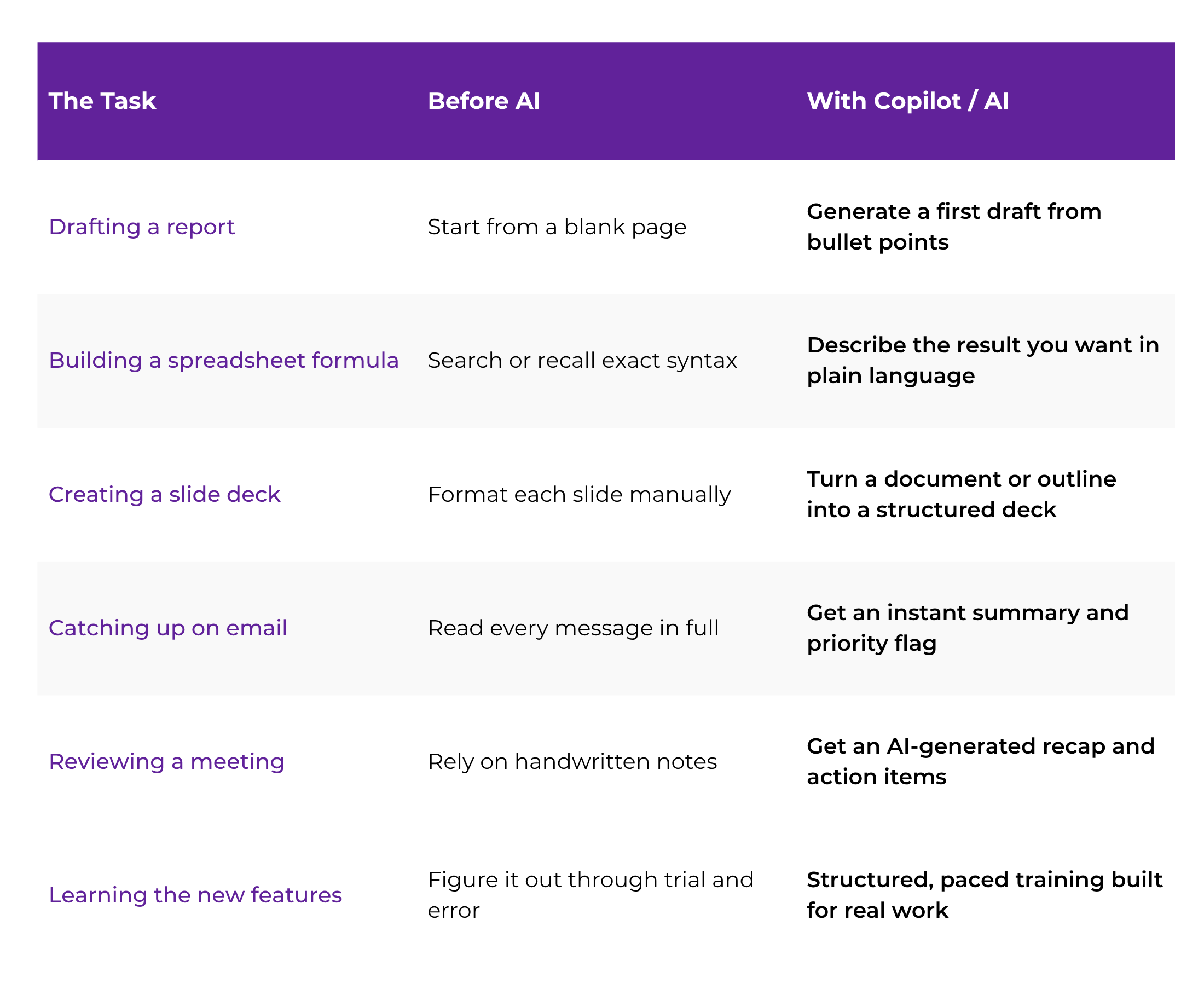
Instead of staring at a blank page, you can now ask Copilot in Word to draft a first version of a memo, proposal, or report based on a few bullet points. Already have a draft? Ask it to tighten the tone, shorten a section, or make dense language easier to read. You stay the author — AI just removes the blank-page paralysis.
You no longer need to remember the exact syntax for a formula. Describe what you want — "show me the top five months by revenue" — and Copilot in Excel can suggest the formula, build a chart, or highlight trends in your data automatically. It won't replace understanding your data, but it removes a lot of the friction of getting there.
Building a presentation used to mean formatting slide after slide. Now you can hand Copilot a document or a rough outline and get a structured, on-brand starting deck in minutes — timing, layout, and talking points included. You still shape the final story, but the heavy lifting starts done.
Copilot in Outlook can summarize a long email thread in seconds, draft a reply in your tone, or help you prioritize what actually needs a response today versus what can wait. For anyone managing a full inbox alongside a full calendar, this alone can reclaim real time in your week.
AI-generated meeting recaps and action-item summaries mean you no longer have to choose between participating in a meeting and taking perfect notes. You can be present in the conversation and still walk away with a clear record of what was decided.
I have a 3-paragraph project update email below. Rewrite it to be shorter, more confident, and easy to skim for a busy manager. Keep the key facts and dates exactly as written.
[paste your email here]
Notice what that prompt does: it gives AI a clear task, a tone, and a boundary ("keep the key facts and dates exactly as written"). That combination — clarity plus guardrails — is the single most useful skill for getting good results out of any AI tool inside Office.
"You don't need to become an AI expert. You need to become someone who knows what to ask for — in the tools you already use every day."
You don't need to relearn Microsoft Office. You need a low-pressure way to start noticing where AI can pick up the parts you find tedious. Here's a sequence that works well for busy professionals:
Don't try to explore AI across every Office app at once. Choose the one you spend the most time in — Outlook, Word, or Excel are common starting points — and get comfortable there first.
✓ Pro tip: Start with the app where you feel least confident, not most
Summarizing a long email thread, drafting a first version of a report, or cleaning up a messy spreadsheet are all good candidates. Pick something you do often, not something rare.
Instead of "help me with this," describe the outcome you want, the tone, and any details that must stay exactly as written. Specific requests get dramatically better results.
✓ Example: "Summarize this thread in 3 bullet points for my manager"
AI gives you a strong starting point, not a finished product. Read it critically, correct anything off-tone or inaccurate, and make it sound like you. This is what keeps your judgment in the driver's seat.
Once one AI habit feels natural, add another in a different app. Small, consistent wins compound into real fluency — much faster than trying to master everything in one sitting.
✓ WBTS courses are structured for exactly this kind of steady progression
It's tempting to assume AI tools are for younger, "more tech-native" employees. In practice, the opposite is often true. Professionals over 40 tend to bring exactly what AI can't replicate: judgment, context, industry knowledge, and the ability to know when an AI-generated draft is actually right for the moment.
Pairing that judgment with AI fluency — rather than avoiding it — is quickly becoming one of the clearest ways to stay visible and valuable at work. Employers aren't looking for people who can operate every feature in Microsoft Office. They're looking for people who can get to a polished result quickly, using whatever tools are available, AI included.
Look for training that teaches AI features inside the actual Microsoft apps you use — not generic AI theory. Prioritize hands-on practice over lecture-style content, and look for a pace that respects the fact you have a full-time job already.
WBTS offers dedicated courses for Microsoft Word, Excel, PowerPoint, Outlook, Teams, and more — plus a standalone AI & ChatGPT Masterclass — so you can build AI fluency inside the exact tools you use every day, at a pace built for working professionals.
Explore all 19 courses
You're not starting from zero. Decades of familiarity with Microsoft Office are a real advantage — you already understand the logic of these tools, the workflows, the shortcuts. AI doesn't erase that experience. It builds directly on top of it.
The professionals who adapt fastest aren't the ones who know the most about AI in theory. They're the ones willing to try it inside tools they already trust, one small task at a time.
Your experience got you this far. A little AI fluency can carry it further.
READY TO BUILD REAL SKILLS?
WBTS courses walk you through AI-powered Word, Excel, PowerPoint, and Outlook — step by step, at a pace built for working professionals. Join 700+ professionals who've already made the shift.