Here's something most Excel training never tells you: you don't need to master Excel to use it powerfully at work. You need to know enough — and then let the right tools fill in the gaps.
For professionals who use Excel regularly but haven't had formal training — or for those who feel stuck at a beginner level even after years of use — AI is quietly changing the game. Built-in AI features inside Microsoft 365, combined with external tools like ChatGPT, are making it possible to do in minutes what used to take hours of manual effort or advanced formula knowledge.
This isn't about replacing skill. It's about working smarter with what you already have — and building capability faster than ever before.
Of job postings require spreadsheet or data skills — across all industries
Faster task completion reported by professionals using AI assistance in Excel
Professionals supported by Kristin Pelletier in building practical digital skills
Most professionals aren't struggling with Excel because they're not smart enough. They're struggling because Excel was designed by engineers, not educators — and the way most people learn it (by accident, in fragments, through trial and error) leaves a lot of gaps.
You might know how to enter data. You might know how to sum a column. But when your manager asks for a report that breaks down sales by region, or when your spreadsheet suddenly returns a #DIV/0! error you've never seen before — that's where the gaps show up, and the frustration sets in.
AI doesn't eliminate the need to learn Excel. But it does dramatically reduce the friction that used to slow learning and productivity at every turn.
In over a decade working with professionals 40+, Kristin Pelletier has seen the same pattern repeatedly: people aren't lacking ability — they're lacking a clear, structured path. AI is now giving everyday professionals a shortcut through the friction that used to make Excel feel out of reach.
Before we talk about strategy, let's get clear on what AI tools actually bring to the table when you're working in Excel. There are two layers here: AI built into Microsoft 365 (through Microsoft Copilot), and external AI tools like ChatGPT or Claude that you use alongside Excel.
Both are genuinely useful. The key is knowing when and how to use each one.

Microsoft Copilot (Built-In)
Directly inside Excel, Copilot can generate formulas, create charts, summarize your data, highlight trends, and suggest analysis steps — all from a plain-English prompt in the sidebar.

ChatGPT / External AI
Describe your spreadsheet or paste in a formula, and an external AI tool can explain it, fix it, build something new, or walk you step-by-step through a process you've never done before.

Excel's Analyze Data Feature
This built-in tool scans your data and automatically suggests charts, pivot tables, and summaries — no formula knowledge required. It's one of Excel's most underused features.

Flash Fill & Smart Suggestions
Excel's AI-powered Flash Fill recognizes patterns in your data and auto-completes formatting tasks in seconds — extracting names, reformatting dates, cleaning inconsistent entries.
You don't need to be on the latest version of Office or have a Copilot license to start benefiting today. Most of these strategies work with tools you already have access to.
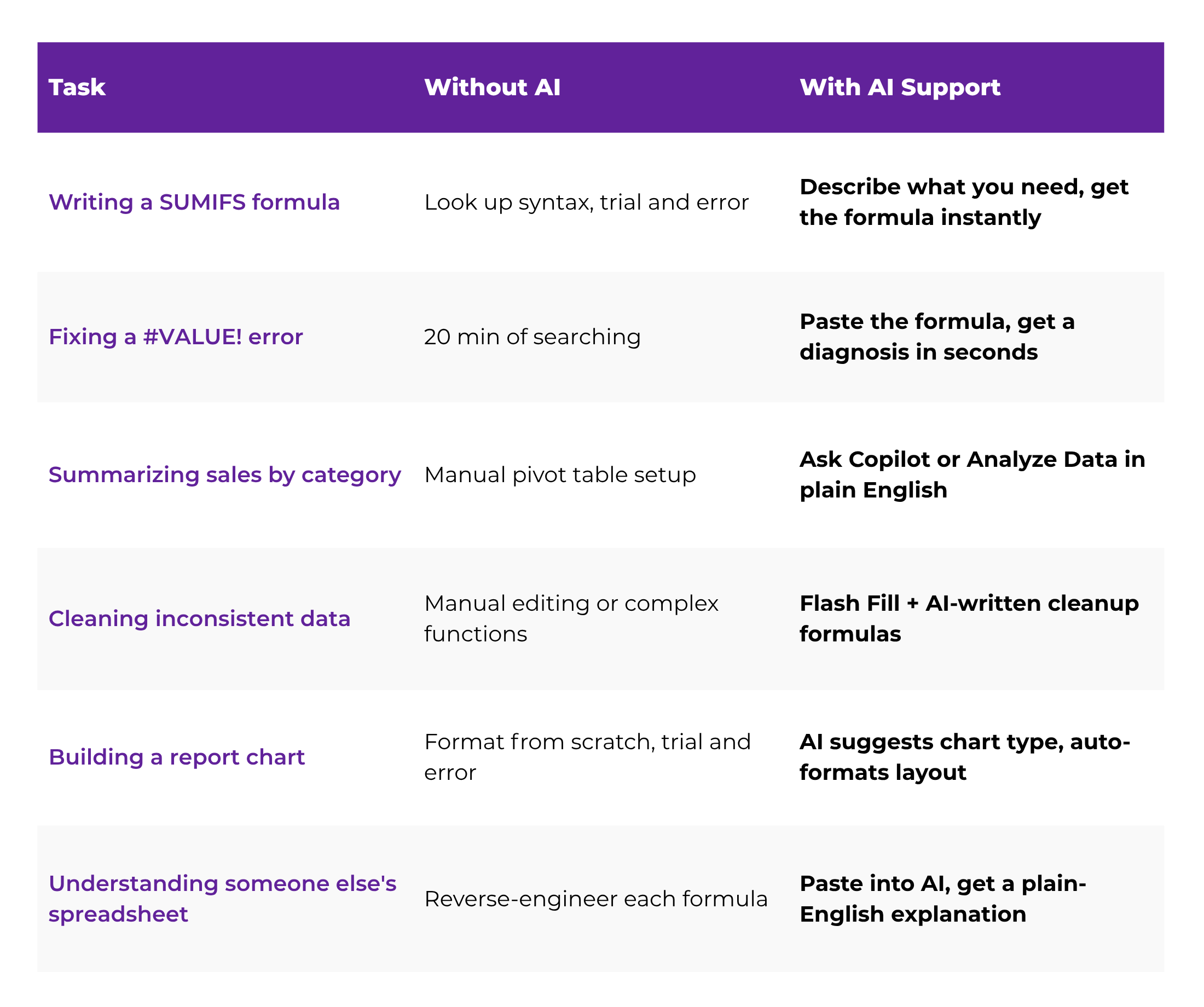
One of the most intimidating things about Excel is formula syntax. Getting one character wrong — a missing parenthesis, an extra comma — and nothing works. AI removes this barrier entirely.
Instead of memorizing how VLOOKUP, INDEX/MATCH, or SUMIFS work, you describe what you want in plain English, and AI writes the formula for you. Then — and this is important — you ask it to explain what it wrote so you understand what's happening.
"I have a spreadsheet with customer names in column A, sales amounts in column B, and region in column C. I want to total all sales from the East region. What Excel formula should I use?"
Error messages like #N/A, #VALUE!, or #REF! used to mean 20 minutes of frustrated Googling. Now you paste the formula into an AI tool, describe the error, and get a clear diagnosis — usually in under 30 seconds.
More importantly, AI explains why the error happened, not just how to fix it. That's how one troubleshooting session becomes a genuine learning moment — not just a patch.
Pivot tables are one of Excel's most powerful features — and one of the most commonly avoided by professionals without formal training. AI changes the access point. With Microsoft Copilot or Excel's Analyze Data feature, you can ask questions about your data directly:
-
"Which product had the highest sales last quarter?"
-
"Show me a breakdown of expenses by category."
-
"What's the average time-to-close by sales rep?"
Excel interprets these natural language questions and generates the appropriate charts, summaries, or tables — no pivot table setup required on your end.
"AI doesn't just help you do things faster — it helps you do things you never would have attempted on your own. That's a different kind of value entirely."
One of the most time-consuming tasks in Excel is cleaning data — fixing inconsistent formatting, separating combined fields, standardizing date formats. This work used to require either manual editing or advanced knowledge of functions like LEFT, MID, TRIM, and SUBSTITUTE.
Excel's Flash Fill feature uses AI pattern recognition to handle much of this automatically. And for more complex cleanup tasks, external AI tools can write the exact formulas you need — or even suggest a sequence of steps to transform your data from messy to clean.
Turning raw data into a polished, readable report used to take hours — especially if you weren't confident with chart formatting, conditional formatting, or data visualization. AI compresses that dramatically.
Microsoft Copilot can scan your spreadsheet and suggest the most meaningful charts for your data. External AI tools can help you build a report template, write the conditional formatting rules, and even draft the narrative summary that goes alongside your numbers.
The result: a professional-looking, clearly structured report — built by you, with AI handling the parts that used to slow you down.
You don't need a new tool, a new subscription, or a new workflow to start getting value from AI in Excel. Here's a practical sequence you can put into action immediately.
Don't try to overhaul everything at once. Think about the one thing you do in Excel that consistently costs you time — writing a formula, cleaning data, building a summary. That's your starting point.
✓ Common answers: calculating totals by category, formatting reports, fixing broken formulas
Open ChatGPT, Microsoft Copilot, or another AI tool. Describe your spreadsheet structure and what you're trying to do. Don't worry about using the right terminology. Just explain it the way you'd explain it to a colleague.
✓ Include: what your columns contain, what output you want, any conditions that apply
Copy the formula or follow the steps AI gives you. Once it's working, ask: "Can you explain what each part of this formula does?" That second step is where you go from using AI as a shortcut to building real, lasting knowledge.
Open a spreadsheet you actually use at work, click on any cell in your data, and go to Home → Analyze Data. Let Excel scan your data and surface insights automatically. This takes 30 seconds and consistently surprises people with how useful it is.
✓ Available in Excel 365 — Home tab, right side of the ribbon
AI fills in gaps in the moment — but a structured course gives you the full picture so you can use those tools more strategically. The combination is what accelerates real skill development. Without a foundation, AI assistance stays a crutch. With it, it becomes a multiplier.
✓ WBTS Excel course is designed specifically for this combination approach
Let's be direct about something: AI makes Excel more accessible, but it doesn't replace Excel knowledge. There are things AI can't do for you.
It can't notice that your data has a structural problem that will make any formula inaccurate. It can't tell you which metric your manager actually cares about. It can't translate raw numbers into a narrative that moves a team forward.
Those are judgment calls — and judgment comes from experience and structured understanding. AI is most powerful in the hands of someone who knows what they're trying to accomplish. The more Excel foundation you build, the better the results you get from AI assistance.
📌 How to Get the Most from AI in Excel
Think of AI as your on-call assistant — not your replacement. Use it for formula writing, error troubleshooting, and quick analysis. Use structured learning to build the broader understanding that tells you which questions to ask and how to interpret what you get back.
Here's the bigger picture: professionals who can combine Excel proficiency with AI fluency are increasingly rare — and increasingly valuable.
Most people in any given workplace fall into one of three groups: those who avoid Excel as much as possible, those who use it at a basic level without confidence, and those who can genuinely leverage it to produce clear, useful, professional-quality work. AI is now creating a fourth group — those who use AI to punch above their technical weight and deliver results that look more advanced than their experience level.
If you're reading this, you're already thinking about which group you want to be in. That's the right instinct. The skills employers are paying more for in 2025 aren't just technical — they're adaptive. They reflect a professional who keeps up, stays current, and uses every available tool to do their job well.
Excel with AI isn't just a productivity upgrade. It's a career positioning move.
Build the Foundation. Use the Tools.
The WBTS Mastering Microsoft Excel course is built for professionals who want real, practical spreadsheet skills — not just workarounds. Pair it with AI tools and you'll have everything you need to work faster, smarter, and with more confidence at work.