Email remains one of the most important communication tools in the professional world.
Even with the growth of messaging platforms and collaboration apps, email continues to play a central role in business communication, scheduling, and information sharing.
Microsoft Outlook is one of the most widely used email platforms in the workplace. Millions of professionals rely on it every day to manage emails, organize schedules, coordinate meetings, and keep projects on track.
Today, Microsoft offers two versions of Outlook:
Classic Outlook (traditional desktop version)
New Outlook (modern experience connected to Microsoft 365)
Both versions support essential productivity tools, but the New Outlook includes improved navigation and built-in AI assistance through Microsoft Copilot.
For beginners, Outlook may appear complicated at first. However, once you understand its core features, it becomes a powerful tool for improving organization and productivity.
Learning the basics of Microsoft Outlook can help professionals communicate more efficiently, stay organized, and manage their workload more effectively.
Microsoft Outlook is more than just an email application. It is a productivity platform designed to manage communication, scheduling, contacts, and tasks in one place.
Professionals commonly use Outlook to:
- Send and receive professional emails
- Schedule meetings and manage calendars
- Organize messages into folders
- Track tasks and reminders
- Store contacts and communication history
- Use Copilot to summarize conversations and draft responses (in supported Microsoft 365 plans)
By combining these tools in one workspace, Outlook helps professionals stay organized and reduce time spent switching between applications.
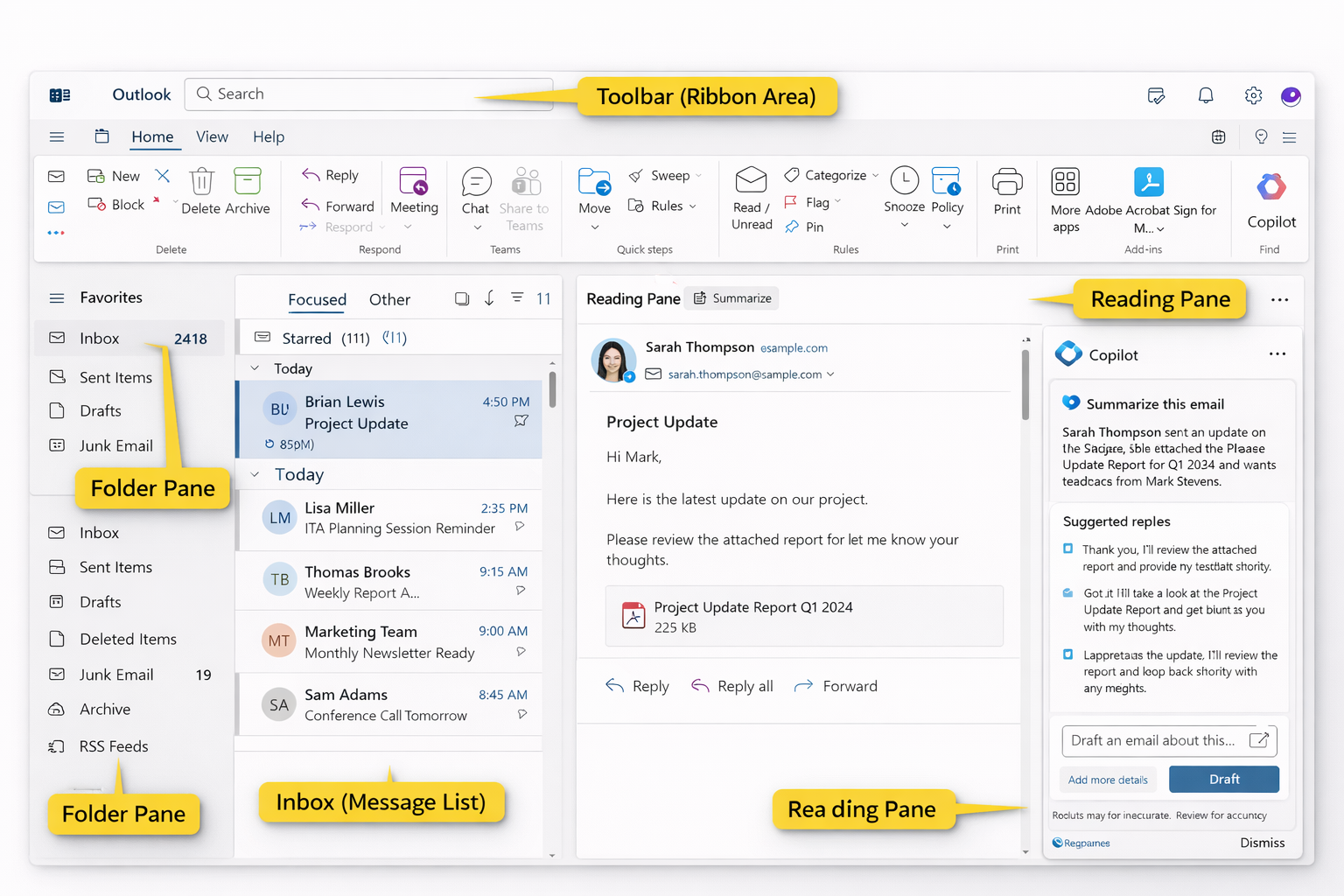
When you first open New Outlook, the interface is organized into clear sections that help you read messages, manage folders, and work more efficiently.
Located on the left side, the Folder Pane displays:
- Inbox
- Sent Items
- Drafts
- Deleted Items
- Custom folders
This area helps organize emails by category, project, or priority.
The Inbox shows your incoming messages in a structured list so you can quickly scan conversations and select what to read next.
Focused and Other tabs may also appear to separate priority messages automatically.
The Reading Pane displays the contents of a selected email without opening a separate window. This helps you review messages faster and stay efficient throughout the day.
At the top of the screen, the toolbar provides commands such as:
- New mail
- Reply and forward
- Categorize
- Flag
- Archive
- Delete
- Quick Steps
These tools support everyday email workflows.
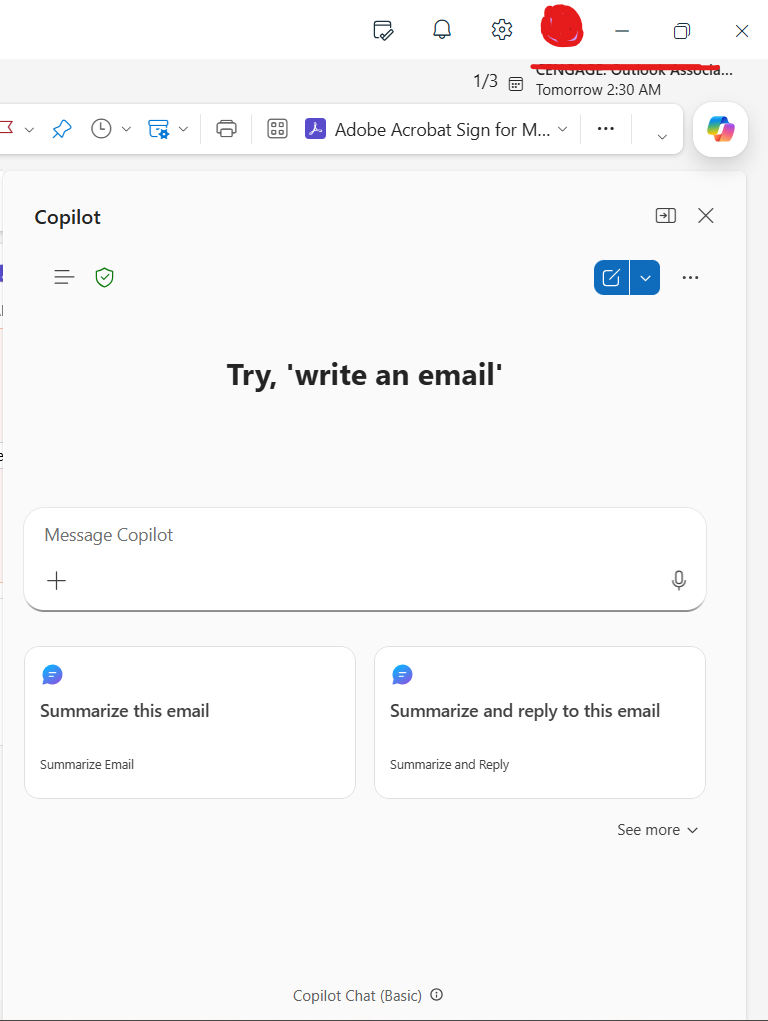
In supported Microsoft 365 environments, Copilot appears directly inside Outlook and can help you:
- Summarize long email threads
- Draft replies faster
- Rewrite messages more professionally
- Extract key action items
- Save time when managing large inboxes
Copilot acts like a built-in productivity assistant that helps reduce email overload.
Understanding how these areas work together makes Outlook much easier to navigate for beginners.
Clear and professional email communication is an essential workplace skill. Outlook provides tools that help professionals create structured and effective messages.
When writing emails, focus on:
- Clear subject lines that summarize the purpose
- Short and organized paragraphs
- Professional tone and language
- Proper use of attachments
- Clear closing statements
In New Outlook, Copilot can also suggest message drafts and improve clarity when responding to complex conversations.
Well-written emails reduce confusion and help colleagues respond more quickly.
Strong email communication is often a sign of professionalism and attention to detail.
Many professionals struggle with inbox overload. Without organization, important messages can easily become buried.
Outlook includes several tools that help keep your inbox manageable:
You can:
- Create folders for projects or departments
- Flag emails for follow-up
- Mark messages as important
- Use categories for organization
- Search messages quickly
- Use Copilot to summarize long conversations instantly
Using these features regularly helps professionals stay organized and respond more efficiently.
The Outlook calendar is one of its most valuable productivity features. It allows professionals to schedule meetings, manage availability, and stay on track with deadlines.
Calendar features include:
- Scheduling meetings with colleagues
- Sending invitations
- Setting reminders
- Viewing daily, weekly, or monthly schedules
- Coordinating availability with teams
Using the calendar effectively helps reduce scheduling conflicts and improves time management.
Outlook also includes a contacts feature that stores important communication details for colleagues, clients, and partners.
Maintaining organized contacts allows professionals to:
- Quickly locate email addresses
- Send messages to groups
- Maintain communication history
- Strengthen professional relationships
Keeping contacts updated improves long-term communication efficiency.
Many organizations rely on Outlook as part of Microsoft 365 for communication and scheduling.
Professionals who understand how to use Outlook effectively often experience:
- Better organization of daily tasks
- Faster email management
- Clearer team communication
- Improved scheduling accuracy
- Increased productivity with Copilot assistance
These skills contribute directly to workplace confidence and efficiency.
For professionals who want deeper Outlook expertise—including automation tools, calendar coordination strategies, and Copilot workflows—structured training can make a meaningful difference.
🔗
Microsoft Outlook CourseLearning Outlook does not require mastering every feature at once. Most professionals start with the basics and gradually improve their workflow over time.
Whether using Classic Outlook or New Outlook, simple habits such as organizing folders, managing calendars, and writing clear emails create immediate improvements.
With the addition of AI tools like Copilot, Outlook is becoming even more powerful for modern workplaces.
Technology should support your work—not complicate it. With the right understanding of Outlook’s core features and built-in AI assistance, professionals can communicate more efficiently and manage their schedules with confidence.