
If spreadsheets make you a little nervous, you’re in exactly the right place. Microsoft Excel for beginners isn’t about becoming a data scientist — it’s about learning a handful of practical skills that make everyday work faster, calmer, and more organized. And here’s the reassuring truth: most professionals only ever use a small slice of what Excel can do, and that slice is completely learnable, even if you’ve avoided Excel for years.
This friendly, step-by-step guide walks you through the essentials — what Excel is for, how to find your way around it, and the core skills that build real confidence. No jargon, no pressure. Just the basics, explained clearly.
What Is Microsoft Excel Used For?
Microsoft Excel is a spreadsheet program — a tool for storing, organizing, and analyzing information in a grid of rows and columns. It’s one of the most widely used business tools in the world, and it quietly powers a huge amount of everyday work.
In a typical workplace, people use Excel to:
- Track budgets, expenses, and invoices
- Manage project timelines and to-do lists
- Organize contact lists and simple databases
- Monitor sales, inventory, or performance numbers
- Turn raw data into clean reports and charts
Because Excel handles both a short shopping list and a giant dataset, becoming comfortable with the basics pays off in almost any role.
Getting to Know the Excel Interface
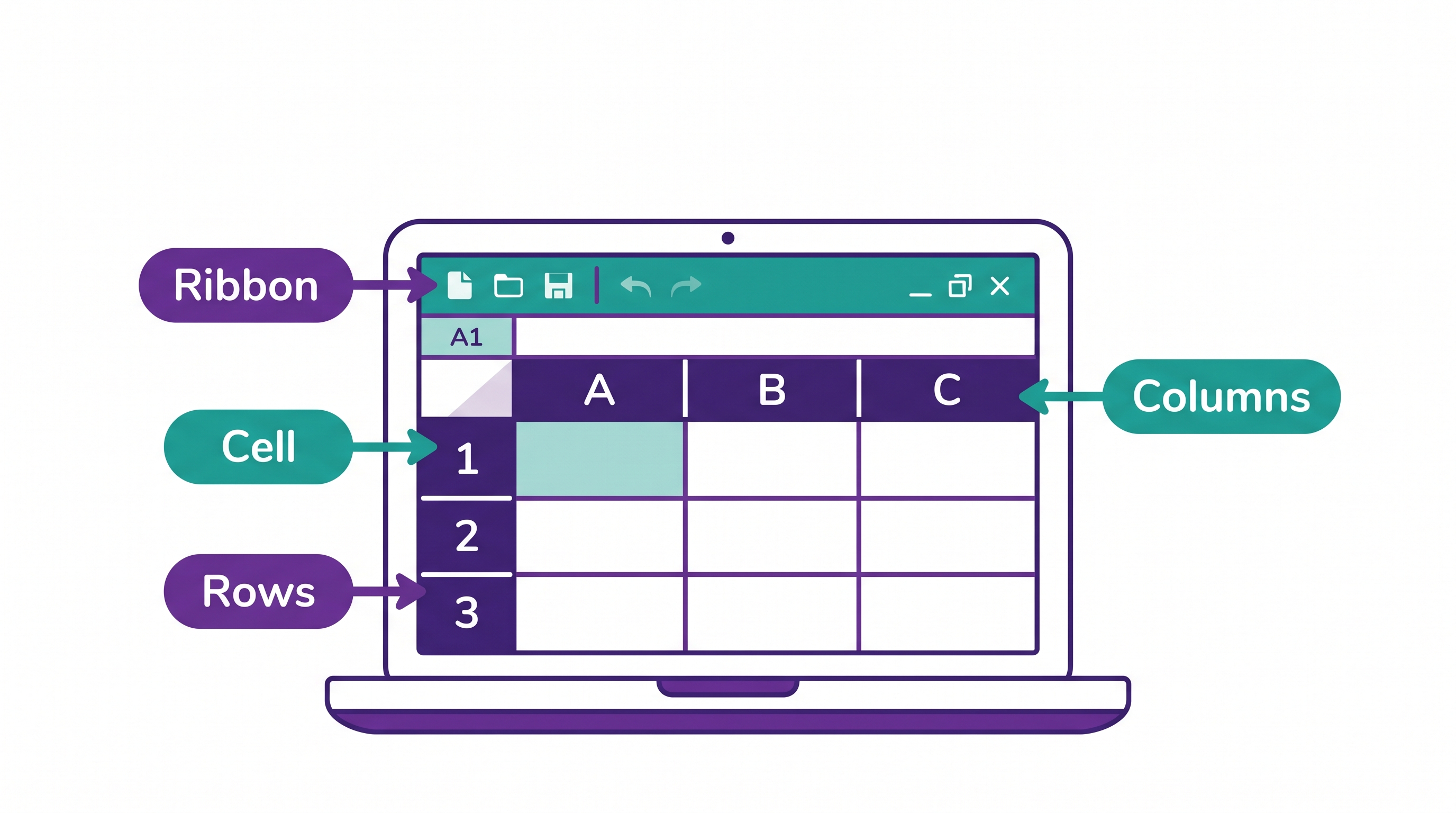
When you open Excel, the grid in front of you is called a worksheet. Once you can name the main parts, everything else feels less overwhelming.
| Part | What it is |
|---|---|
| Cell | A single box where you type information — each has an address like A1 |
| Row | A horizontal line of cells, labeled with numbers (1, 2, 3…) |
| Column | A vertical line of cells, labeled with letters (A, B, C…) |
| Worksheet | One grid/tab; you can have several tabs in one file |
| Workbook | The entire Excel file that holds all your worksheets |
| Ribbon | The toolbar across the top where all the buttons and commands live |
That’s genuinely most of the vocabulary you need to get started. Spend two minutes clicking around the Ribbon tabs (Home, Insert, Data) just to see what’s there — you don’t have to understand it all yet.
Entering and Organizing Your Data
To add information, click a cell and type. Data can be numbers, text, dates, or formulas. The habits that keep a spreadsheet readable are simple:
- Give every column a clear header in row 1 (like Date, Category, Amount)
- Keep related data together in one continuous table — no random gaps
- Avoid blank rows and columns inside your data; they confuse Excel’s tools later
- Be consistent with how you write dates and numbers
A simple monthly budget, for example, might use the columns Date · Category · Description · Amount. Clean structure now saves you real time when you start sorting, filtering, and adding formulas.
5 Essential Excel Formulas for Beginners
Formulas are where Excel starts to feel like magic — they do the math for you and update automatically when your numbers change. Every formula starts with an equals sign (=). These five cover the vast majority of beginner needs:
| Formula | What it does | Example |
|---|---|---|
| SUM | Adds a range of numbers together | =SUM(A1:A10) |
| AVERAGE | Finds the average of a range | =AVERAGE(B1:B10) |
| COUNT | Counts how many cells contain numbers | =COUNT(C1:C10) |
| MAX | Returns the largest number in a range | =MAX(D1:D10) |
| MIN | Returns the smallest number in a range | =MIN(D1:D10) |
=SUM() formula for you — a great way to learn how formulas look.
Sorting and Filtering to Make Sense of Data
As a spreadsheet grows, sorting and filtering keep it manageable. Sorting rearranges your rows — alphabetically, smallest-to-largest, or newest-to-oldest. Filtering temporarily hides everything except the rows you care about, like showing only one month’s expenses or one salesperson’s results.
You’ll find both on the Data tab. Turn on Filter and small dropdown arrows appear on your headers — click one to sort or filter that column in a couple of clicks. Nothing is deleted; you’re just changing what you see.
Formatting That Makes a Spreadsheet Readable
Good formatting is the difference between a spreadsheet people trust and one they squint at. A few high-impact basics:
- Bold your header row so it stands out from the data
- Format numbers properly — currency for money, a date format for dates (Home tab → Number)
- Freeze the top row (View → Freeze Panes) so headers stay visible as you scroll
- Use conditional formatting to auto-highlight things — like coloring overdue dates red
Turning Data Into a Chart
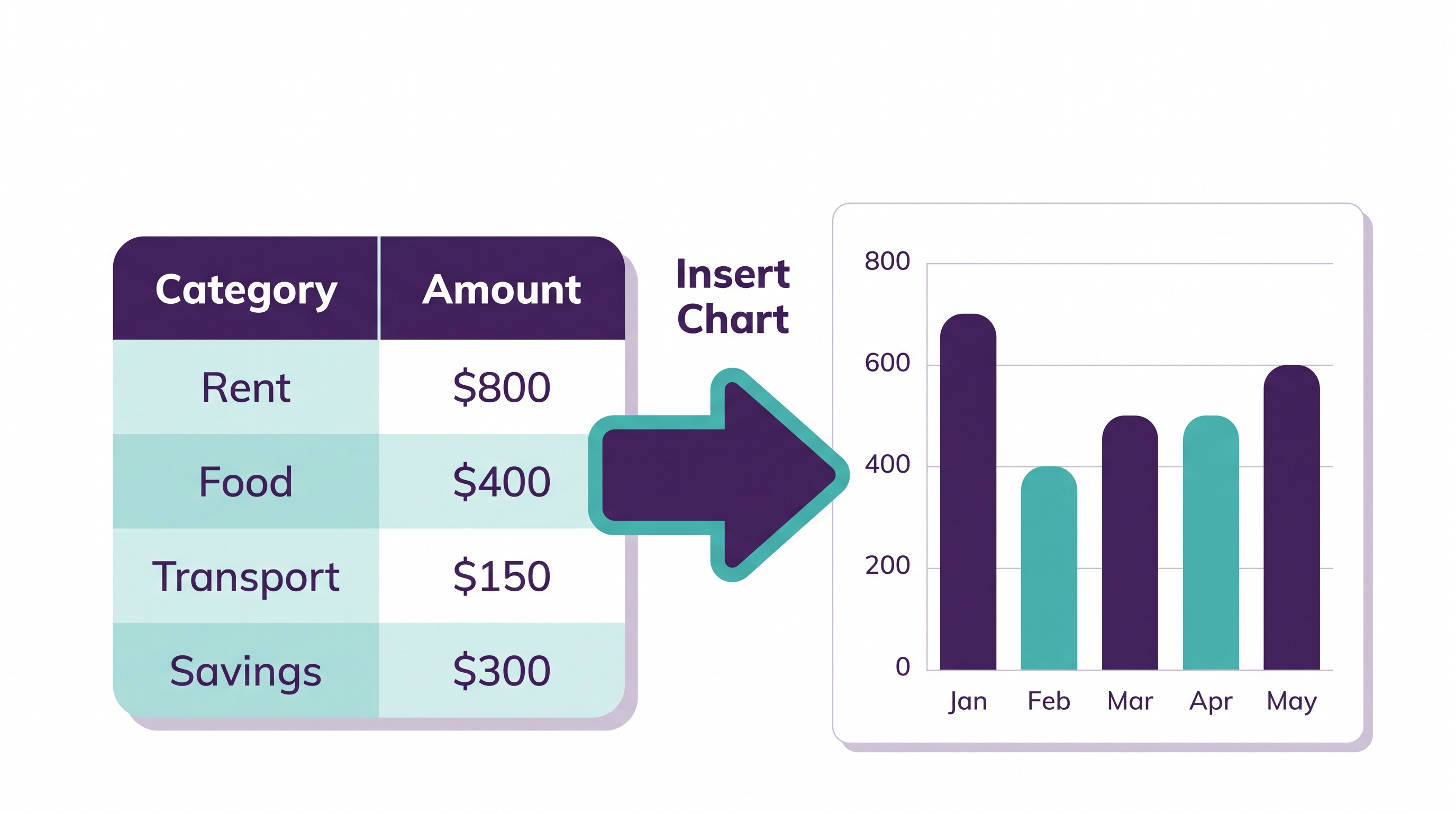
A chart turns a wall of numbers into a picture anyone can understand in seconds. It’s easier than it looks: select your data (including the headers), go to the Insert tab, and choose a chart type. For beginners, column charts compare amounts, line charts show change over time, and pie charts show parts of a whole.
A Quick Word on AI and Copilot in Excel
You’ve probably heard about AI in Microsoft Office, and it can genuinely help beginners. Excel’s built-in Analyze Data feature can suggest charts and summaries from your table, and Microsoft Copilot can help write formulas or explain your data in plain language.
One honest note: the more powerful Copilot features usually require a specific paid Microsoft 365 plan, and availability changes over time — so treat AI as a helpful bonus, not a replacement for the fundamentals above. Learning the basics first is what lets AI actually save you time.
How to Practice and Build Real Confidence
Excel sticks when you use it, not just read about it. The fastest way to get comfortable:
- Recreate something real — a monthly budget, a contact list, a simple habit tracker
- Practice the five formulas until typing
=SUM()feels automatic - Make one chart from your own data — even a tiny one
- Learn one new feature a week instead of trying to master everything at once
If you’d rather follow a calm, guided path than piece together random videos, that’s exactly what we build at Wanna Be Tech Savvy. Our Mastering Microsoft Excel course takes you from complete beginner to confident, step by step — and you can keep going with Excel skills that improve productivity at work once the basics click.
Ready to Feel Confident in Excel?
Go from “I’m not a spreadsheet person” to genuinely capable — at your own pace, with friendly, plain-English lessons made for beginners.
Start the Excel Course →Frequently Asked Questions
How do I start using Microsoft Excel as a beginner?
Open a blank workbook, click a cell, and type to enter data. Get familiar with the interface (cells, rows, columns, and the ribbon), try the five core formulas (SUM, AVERAGE, COUNT, MAX, and MIN), then practice sorting, filtering, and building a simple chart. Working through one real spreadsheet is the fastest way to learn how to use Microsoft Excel.
Is Microsoft Excel hard to learn for beginners?
No. The core skills most jobs need — entering data, a few formulas, sorting, and simple charts — are very learnable, even if you’ve avoided Excel for years. You don’t need advanced technical knowledge to become confident with the basics.
Do I need to be good at math to use Excel?
Not at all. Excel does the math for you through formulas like SUM and AVERAGE. You just tell it which cells to work with, and it calculates the result automatically.
What are the most important Excel skills for beginners?
Start with navigating the interface, entering and organizing data cleanly, the SUM/AVERAGE/COUNT/MAX/MIN formulas, sorting and filtering, basic formatting, and creating a simple chart. Those cover the majority of everyday workplace tasks.
What’s the difference between a workbook and a worksheet?
A worksheet is a single grid (one tab) of rows and columns. A workbook is the entire Excel file, which can contain many worksheets. Think of the workbook as a binder and each worksheet as a page inside it.
How long does it take to learn Excel for beginners?
Most people get comfortable with the everyday basics in a few focused hours of practice spread over a week or two. A guided course speeds this up by showing you exactly what to learn and in what order.
Can I learn Microsoft Excel for free?
Yes — free tutorials, including Microsoft’s own Excel help, can teach the fundamentals. A structured course helps if you want a clear path, practice files, and support instead of piecing videos together.
Microsoft Excel for Beginners: You’ve Got This
Learning Microsoft Excel for beginners isn’t about memorizing hundreds of features — it’s about getting comfortable with a solid handful and building from there. Master the interface, a few formulas, sorting, formatting, and one chart, and you’ll already be more capable than most. Take it one small step at a time, and explore all Wanna Be Tech Savvy courses whenever you’re ready for the next one.

Empowering everyday people with digital skills that open doors to better careers and bigger opportunities. Learning made simple, practical, and affordable.