Be honest: how much of your workday disappears into email? For most professionals, the inbox is the first thing they open in the morning and the last thing they check at night. It interrupts deep work, hijacks priorities, and somehow never seems to reach zero.
Here's the good news: Microsoft Outlook now has AI built directly into it — and it's changing what email management looks like for busy professionals. Drafting replies, summarizing long threads, prioritizing what actually matters, protecting your calendar — these are no longer things you have to do entirely by hand.
If you're a professional in your 40s or 50s who's been managing email the same way for the past fifteen years, this post will show you what's changed, what's possible, and how to start using AI in Outlook without overhauling anything.
Professionals supported by Kristin Pelletier over the past decade
Of the typical workday spent reading and answering email
Published courses at WBTS — including Microsoft Outlook
It's easy to dismiss email as administrative noise. But in most workplaces, your inbox is where your professionalism is most visible. How quickly you respond, how clearly you write, how reliably you follow through — colleagues, managers, and clients are forming impressions from every message you send.
Email is also where time quietly disappears. Professionals routinely spend two to three hours a day reading and responding to messages. That's a quarter or more of the workweek — time that could be going toward the projects that actually get you noticed and promoted.
The professionals who manage email well aren't necessarily faster typists. They have systems: they triage instead of reacting, they write clearly the first time, and increasingly, they let AI handle the repetitive parts so they can focus on the judgment calls that actually require a human.
In her work with 700+ professionals over the past decade, one pattern Kristin Pelletier sees again and again: the people who feel most "behind" at work are often drowning in reactive email habits — not lacking skill. Fixing the inbox is frequently the fastest win in a professional's entire digital workflow.
Microsoft has been steadily building AI into Outlook — most visibly through Microsoft Copilot, which is available in Microsoft 365 plans, but also through smarter built-in features that many professionals don't realize they already have. Here's what AI-assisted email management looks like in practice.
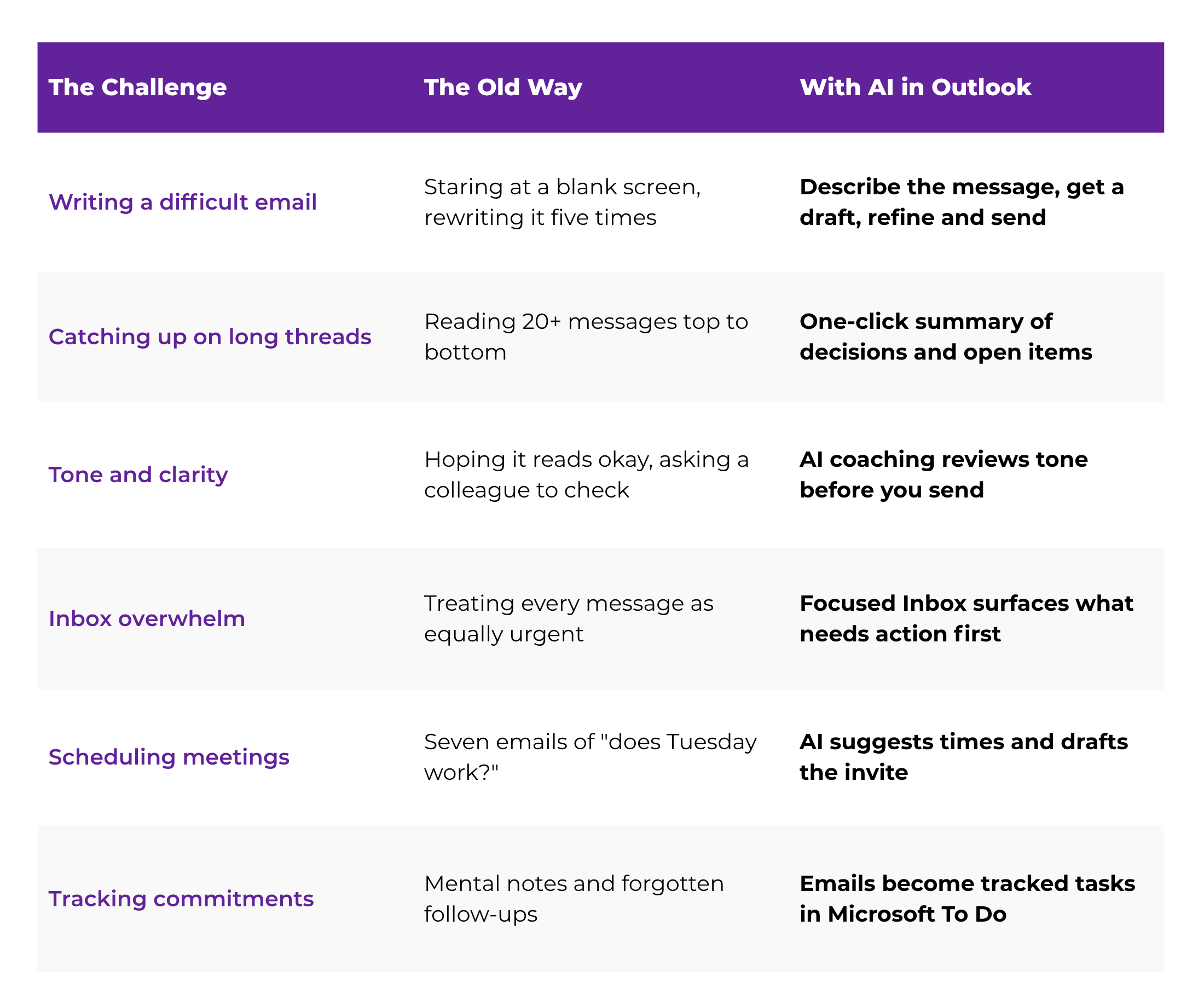
With Copilot in Outlook, you can describe what you want to say — the key points, the tone, the audience — and get a complete, well-structured draft in seconds. You review it, adjust the wording so it sounds like you, and send. The blank-screen problem disappears.
This is especially valuable for the emails that take disproportionate mental energy: declining a request politely, following up on something overdue, or delivering news that needs careful wording.
"Draft a polite reply declining this meeting request. Suggest two alternative times next week and keep the tone warm and professional."
You've been out of office for two days and return to a 23-message thread with four people debating a decision. Instead of reading it all, Copilot can summarize the entire conversation — who said what, what was decided, and what's still open. You're caught up in under a minute.
Copilot's coaching feature can review a draft you've written and suggest improvements to clarity, tone, and impact. Wondering if your email sounds too blunt? Too wordy? Ask before you send — and learn something about your writing patterns in the process.
"The goal isn't to let AI write your emails for you. It's to spend your energy on the messages that matter — and let AI handle the rest."
Outlook's Focused Inbox already separates important messages from the noise, and AI-powered prioritization keeps getting smarter about surfacing messages that need action versus those that can wait. Combined with rules and categories, this turns a chaotic inbox into a triaged one.
AI-assisted scheduling in Outlook can suggest meeting times based on everyone's availability, draft the invitation, and even propose an agenda from the related email thread. The seven-message "does Tuesday work?" dance becomes one step.
Outlook integrates with Microsoft To Do, and AI features can help identify commitments and follow-ups buried in your messages. That request you promised to handle "by Friday"? It becomes a tracked task instead of a forgotten thread on page three of your inbox.
You don't need to adopt every feature at once. Here's a practical sequence any professional can start this week — no overhaul required:
In Outlook, go to View settings and enable Focused Inbox. Outlook's AI will start separating messages that need your attention from newsletters, notifications, and noise. Check the "Other" tab once or twice a day — not every five minutes.
✓ Pro tip: Move misfiled messages between tabs — Outlook learns from it
Pick one real message — ideally one you've been putting off — and let Copilot or another AI tool produce the first draft from your bullet points. Edit it until it sounds like you. The goal is building the habit, not outsourcing your voice.
✓ Example: "Draft a follow-up on the report I sent Monday. Friendly but clear that I need a response by Thursday."
The next time you face a long thread, resist the urge to scroll from the top. Use Copilot's summarize feature to get the decisions and open questions, then read only the messages that need your full attention.
AI can speed up individual emails, but the biggest gains come from changing when you do email. Set two or three dedicated email blocks per day and close Outlook between them. The combination of batching plus AI assistance is where hours come back.
Rules, folders, categories, quick steps, calendar integration — these fundamentals multiply everything AI does for you. A structured course gets you there faster than years of picking things up in fragments.
✓ The WBTS Microsoft Outlook course covers exactly this progression
AI can draft, summarize, and prioritize — but it can't decide what matters to your career, which relationships need a personal touch, or when a phone call beats a perfectly worded email. Judgment is still your job. AI just clears the clutter so you have the time and headspace to exercise it.
There's also a practical reality: AI features work best for people who understand the tool underneath them. If your folders are chaos, your calendar and email don't talk to each other, and you've never set up a rule or a quick step, AI is accelerating a disorganized system. Structure first, speed second.
Think of it like this: AI is the assistant. Outlook fundamentals are the filing system. An assistant working inside a well-organized office is transformative. The same assistant in a messy one just shuffles the piles faster.
Before pasting work emails into external AI tools, check your organization's AI and data policies. Copilot inside your company's Microsoft 365 environment is generally designed to keep your data within that environment — but knowing your employer's rules is part of being a professional, AI-confident user.
The Microsoft Outlook course at WBTS is built for professionals who want to go from reactive inbox-checking to confident email management. It covers the organization systems, time-saving features, and calendar integration that make Outlook — and the AI inside it — genuinely work for you.
Explore the course →
If email has felt like a treadmill for years, it's not because you're disorganized or behind. It's because the volume grew faster than the tools — until now. For the first time, the tools are catching up.
You don't need to master every AI feature this month. Start with one: a drafted reply, a summarized thread, a Focused Inbox. Each small win compounds — less time in the inbox, more energy for the work that gets you noticed, promoted, and paid.
Email management is a career skill. And with AI in Outlook, it's never been more learnable.
Ready to Take Back Your Inbox?
The WBTS Microsoft Outlook course was built for busy professionals who want real control over email, calendar, and follow-through — with guided instruction designed for how adults actually learn. Join 700+ professionals who've already made the shift.