
AI in Microsoft 365: What Every Working Professional Needs to Know

May 18 / Wanna Be Tech Savvy

There's a shift happening inside Microsoft 365 that most working professionals haven't fully registered yet — and it has the potential to change how you work every single day.

AI is no longer something you have to go looking for. It's not a separate app, a separate subscription, or a separate skill set you need to learn from scratch. It's being built directly into the Microsoft tools you already use — Word, Excel, Outlook, Teams, and PowerPoint. The question is no longer whether AI will touch your workday. It already has. The question is whether you're going to use it intentionally — or get left behind by the colleagues who are.

This post breaks down what AI in Microsoft 365 actually looks like, what it can do for a working professional, and how to start using it with confidence — even if you've never considered yourself a "tech person."

1B+

People worldwide use Microsoft 365 in their work every day

70%

Of Copilot users say it helps them be more productive at work (Microsoft research)

700+%

Professionals supported by Kristin Pelletier in building digital confidence over the past decade

What Is Microsoft Copilot — and Why Does It Matter to You?

Microsoft Copilot is the AI layer that Microsoft has integrated across its entire 365 suite. Think of it as an intelligent assistant that lives inside the apps you already know — one that can draft content, summarize information, analyze data, automate repetitive tasks, and respond to your questions in plain English.

It's powered by the same technology behind ChatGPT (Microsoft has a major partnership with OpenAI), but it's specifically designed to work within your Microsoft environment — meaning it can access your documents, emails, calendar, and files to give you context-aware, relevant assistance.

For working professionals, especially those who have spent years building their expertise in areas that don't require deep technical knowledge, this is genuinely significant. You don't need to learn to code or become a data analyst to benefit from AI in Microsoft 365. You just need to know where it lives and how to ask it for help.

💡 The WBTS Insight

One of the most common misconceptions Kristin hears from professionals over 40 is that AI tools are "for tech people." The reality is that Microsoft Copilot was specifically designed for everyday professional use — not for developers. If you can type a question, you can use Copilot.

AI Is Already Inside the Apps You Use Every Day

You don't need to go out and find an AI tool. If you're already using Microsoft 365 at work, AI capabilities are either already available to you or coming soon through your organization's plan. Here's what Copilot can do across the specific apps you likely use most:

Microsoft Word

Draft documents, rewrite sections in a different tone, summarize long reports, and generate outlines — all from a simple text prompt. No more staring at a blank page.

✦ Draft & Rewrite

Microsoft Excel

Ask questions about your data in plain English, generate formulas automatically, create charts, identify trends, and get summaries of complex spreadsheets without needing to know every function.

✦ Data Analysis & Formulas

Microsoft Outlook

Summarize long email threads in seconds, draft replies with the right tone, prepare for meetings by reviewing relevant conversations, and manage your inbox more efficiently than ever before.

✦ Email Drafting & Summaries

Microsoft Teams

Get real-time meeting summaries, action item lists, and key decisions captured automatically — even if you joined late or were multitasking. Never lose track of what was agreed again.

✦ Meeting Recaps & Action Items

Microsoft PowerPoint

Generate entire presentation drafts from a topic or document, redesign slide layouts, suggest speaker notes, and transform raw content into visually polished slides — in a fraction of the usual time.

✦ Slide Generation & Design

Microsoft 365 Chat

Ask Copilot questions that draw on your emails, documents, meetings, and calendar — all in one place. It's like a search engine for your entire work history that actually understands what you're asking.
✦ Cross-App Intelligence

"The professionals who learn to work with AI inside Microsoft 365 won't just be more productive — they'll be more visible, more valued, and more competitive."

What This Actually Means for Your Career

Let's be direct: workplaces are beginning to distinguish between employees who can leverage AI to produce higher-quality work faster — and those who can't. This isn't a future concern. It's already influencing how teams operate, how roles are evaluated, and how organizations make decisions about who gets more responsibility.

But there's an important flip side to this conversation that's often missed: AI in Microsoft 365 doesn't replace your expertise — it amplifies it. The professional who understands their industry, has strong judgment, and knows how to communicate effectively will become dramatically more effective with AI than someone who's technically proficient but lacks those foundational skills.

This is particularly important for professionals in their 40s and 50s. Decades of experience, institutional knowledge, and professional relationships are things AI cannot replicate. What Copilot can do is handle the time-consuming tasks that slow you down — so your expertise gets more airtime.

✅ The Real Opportunity

Professionals who combine deep work experience with AI fluency in Microsoft 365 aren't being replaced — they're becoming the people organizations most want to keep, promote, and invest in. The combination of human judgment and AI efficiency is the new career edge.

Your Workday: Before AI in Microsoft 365 vs. With Copilot
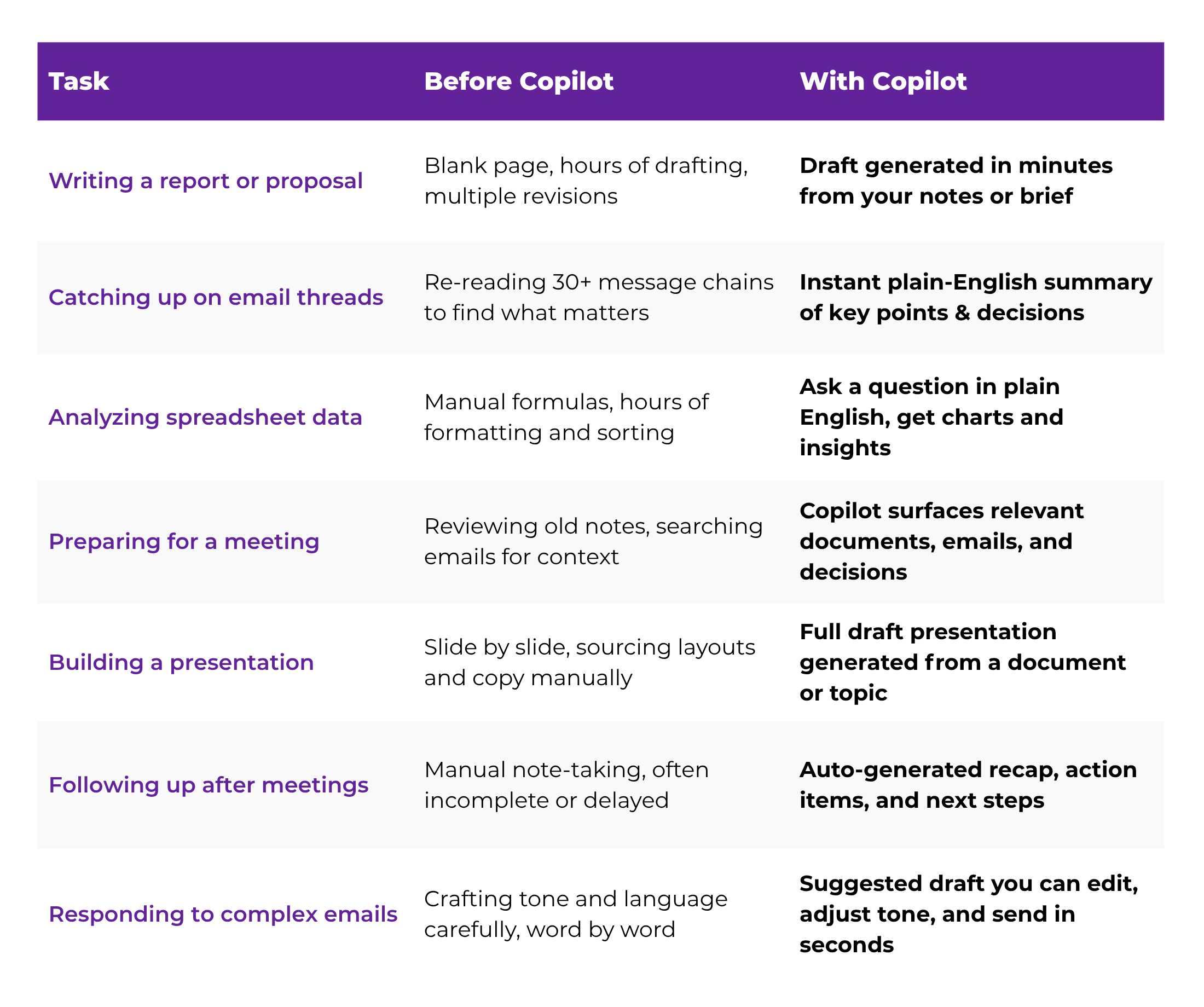
How to Start Using AI in Microsoft 365 — Even If You're Not "Technical"

The most important thing to know about getting started with Copilot is that there is no technical prerequisite. If you can describe what you need in plain English, you can use it. Here's a practical approach to building that capability — starting today.

  • Find out what's already available to you

Check with your IT department or manager to see whether Microsoft Copilot is included in your organization's Microsoft 365 plan. If you're self-employed or using a personal subscription, log into Microsoft 365 and look for the Copilot icon in Word, Excel, or Outlook. Availability varies by plan, but it's expanding rapidly across all tiers.

✓ Look for the colorful Copilot sparkle icon in your Office toolbar
  • Start with the app you use most

Don't try to learn every Copilot feature across every app at once. Pick the Microsoft 365 app you open first every morning — whether that's Outlook, Word, or Excel — and explore what Copilot can do there specifically. Focused learning sticks faster and delivers immediate, visible results.

  • Use it on a real task this week

Find one task from your actual workload — a report you need to write, an email thread you need to summarize, or a spreadsheet you need to analyze — and let Copilot assist you with it. The learning that happens through direct application is ten times more effective than watching tutorials.

✓ Try: "Summarize this email thread and list any open action items"
  • Learn to prompt well — it's a skill that pays off quickly

The quality of your results from AI tools directly reflects the quality of your prompts. A vague question gets a vague answer. A specific, well-framed prompt gets output you can actually use. The good news: this isn't complicated. It's mostly about being clear and adding context — skills you already have from years of professional communication.

✓ Try: "Write a professional email declining this meeting request. Keep it brief and friendly."
  • Build a foundation with structured AI training

Using AI tools confidently requires more than just clicking around. A structured course gives you the full picture of how AI works, how to get the most out of tools like Copilot and ChatGPT, and how to integrate AI into your workflow systematically — not just in one-off moments. That's the difference between being an occasional user and being genuinely AI-fluent.

✓ WBTS AI & ChatGPT Masterclass covers this progression from the ground up

The Bigger Picture: AI Fluency Is Becoming a Career Baseline

A few years ago, "computer skills" on a résumé was considered a bonus. Then it became a standard expectation. Today, digital fluency — including the ability to use tools like Microsoft 365 effectively — is table stakes for most professional roles.

We're watching the same shift happen with AI. Right now, AI fluency is still seen as a differentiator. But that window won't stay open forever. The professionals who invest in AI skills today — while there's still an advantage to gaining them — will be the ones setting the pace when AI literacy becomes the new professional baseline.

This doesn't require becoming a technology expert. It requires intentional learning, consistent practice, and the right support to build real, applicable confidence — not just surface-level familiarity.

📌 What AI Fluency Actually Looks Like at Work

It's not about knowing every feature or understanding the technology under the hood. AI fluency means knowing when AI can help, how to ask for what you need, and how to review and refine what it produces. That judgment — knowing what good output looks like and how to direct AI toward it — is built through practice, not just exposure.

You Don't Have to Figure This Out on Your Own

One of the challenges with AI tools is that they're evolving fast. New features, new capabilities, and new best practices are emerging constantly — and it can feel overwhelming to keep up, especially while you're managing a full professional workload.

That's exactly why structured training matters. The WBTS AI & ChatGPT Masterclass was designed to give working professionals a clear, practical foundation in AI tools — including how to use them effectively within the Microsoft 365 environment. It cuts through the noise and focuses on what actually helps you work better, communicate more effectively, and position yourself as someone who understands where the workplace is heading.

And if you want to strengthen your underlying Microsoft 365 skills first — so that you can get even more out of AI features — WBTS has courses across every major app in the suite. Strong foundational skills and AI fluency together create a combination that's genuinely hard to overlook.

✅ The WBTS Approach

WBTS programs are designed as a progression — from building a strong digital foundation to confidently integrating AI into daily work. With our published courses covering Microsoft 365, AI tools, and career-focused digital skills, there's a clear path forward no matter where you're starting from.
Explore all courses →

The Shift Is Already Here — The Opportunity Is Right Now

AI in Microsoft 365 isn't a future development you'll need to prepare for someday. It's here. It's inside the applications open on your screen right now, or it will be very shortly. The professionals who get intentional about learning these tools — who go beyond clicking around and actually build the skills to use them well — are the ones who will feel this shift as an advantage rather than a disruption.

You don't need to be early to everything. But this one is worth showing up for.


Your experience is the asset. AI in Microsoft 365 is the amplifier. Together, they make you more competitive than you may realize.


Ready to Build Real AI Confidence?

Learn to Use AI at Work — Starting With What You Already Know

The WBTS AI & ChatGPT Masterclass gives you a practical foundation in AI tools built for working professionals — including how to use AI features inside Microsoft 365 to work smarter every day. Join 700+ professionals who've already made the shift.